18. Routine tasks
Part 18
The jobs you will actually be asked for, as sequences you can follow without thinking them through each time.
18.1. Onboarding someone
Create the account
Users → Create New User, with a temporary password (5.1). Or import them from the directory (Part 17).
Add them to their team’s group
Groups (Part 06). This is what gives them workspace access without anyone editing member lists.
Grant the products
Entitlements → per user (7.3). Skipping this is the classic mistake.
Send them the temporary password and the site address
They will be forced to change it at first sign-in.
Point them at the User guide
Particularly Parts 02 to 06 of it.
18.2. Offboarding someone
Terminate their active sessions
Active Sessions (Part 09). Do this first, so nothing continues while you work.
Revoke their product entitlements
Entitlements. Access stops immediately and the account survives for review.
Transfer any workspaces they own
Ask the new owner to accept, or have the departing user transfer before their last day (Users guide, 14.4). An ownerless workspace is a problem you will meet later.
Remove them from groups
Groups.
Delete the account when your retention rules allow
Users → Delete User. Their uploaded files stay in shared workspaces.
18.3. “I cannot sign in”
Ask for the exact message
The wording identifies the cause almost every time — see the table in Part 19.
Locked?
Unlock the account on the Users page (5.3).
Signs in but sees nothing?
Missing entitlement (7.3).
Never received a reset email?
Check Mail is configured and send yourself a test (Part 11).
Everyone is affected, not one person?
Check Product Login (Part 04) — a recent change there is the usual cause.
18.4. A lost or stolen laptop
Terminate that user’s sessions
Active Sessions.
Have them remove the device
Or confirm it is gone from Sync Monitoring. Removing it stops further syncing.
Force a password change
And review Session History for anything after the loss.
18.5. Someone is out of storage
Confirm which quota is full
The workspace quota (workspace Settings → Storage) or the organisation total (Entitlements → Max Storage).
Raise the appropriate one
Or ask the workspace owner to empty Trash, which frees space only after permanent deletion.
If it is desktop backups
Check Device Storage (GB) on Entitlements — a separate allowance from ordinary files.
18.6. Creating a workspace for a team
Only administrators can create workspaces — the New workspace button is hidden from ordinary users, who are told to contact you instead. Creating one is a five-stage wizard.
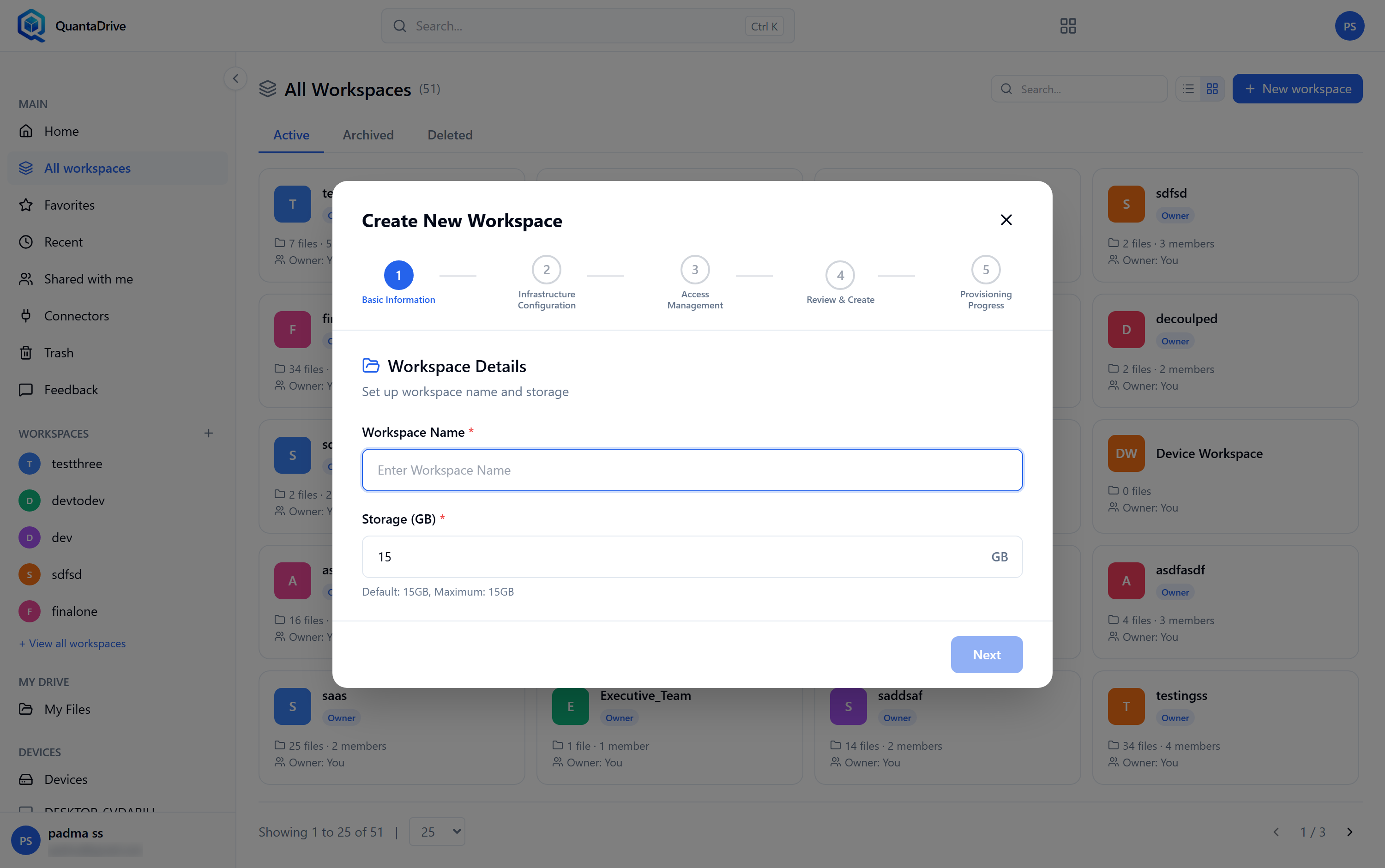
Stage 1 — Workspace Details. The steps across the top show the five stages.
Stage 1 — Workspace Details
Set up workspace name and storage. Give it a Workspace Name the team will recognise, and a Storage (GB) allowance. The hint under the box states the default and the maximum your plan allows, for example Default: 15GB, Maximum: 15GB; you cannot exceed the maximum.
Stage 2 — Infrastructure Configuration
Configure cloud storage for this workspace. Choose the Cloud Platform, the Bucket Name and the Path inside it. These lists are filled from Storage Access (Part 13) — if they are empty, that page is unconfigured and no workspace can be created.
Stage 3 — Access Management
Assign users and groups with appropriate permissions. Search on the left, click a user or group to move it right, then set each one’s role. Adding a group is tidier than naming people one by one. You may leave it empty and add people later.
Stage 4 — Review & Create
Check Basic Information (name, owner, storage) and Infrastructure (provider, region, bucket, path). Use Previous to correct anything — the provider and region cannot be changed after creation.
Stage 5 — Provisioning Progress
QuantaCloud creates the storage location and the member list. Wait for it to finish; the workspace then appears for everyone you added.
Set the owner deliberately
Whoever creates the workspace becomes its Owner. If the team should own it, transfer ownership to their lead once it exists — an ownerless workspace is a problem you inherit later.
18.7. A monthly ten-minute check
Sync Monitoring — any device stale for weeks?
Active Sessions — anyone signed in who has left?
Users — any account still holding Admin that no longer needs it?
Entitlements — are you near Max Users or Max Storage?
Mail — send one test; a mail server that quietly expired its password is invisible until someone needs a reset.