4. Workspaces
Part 04
A workspace is where a team keeps its files. It has an owner, a member list, a storage quota and its own cloud storage location. If you are new and see nothing here, you have not been added to one yet — ask a colleague to add you, or create your own.
4.1. The workspaces list
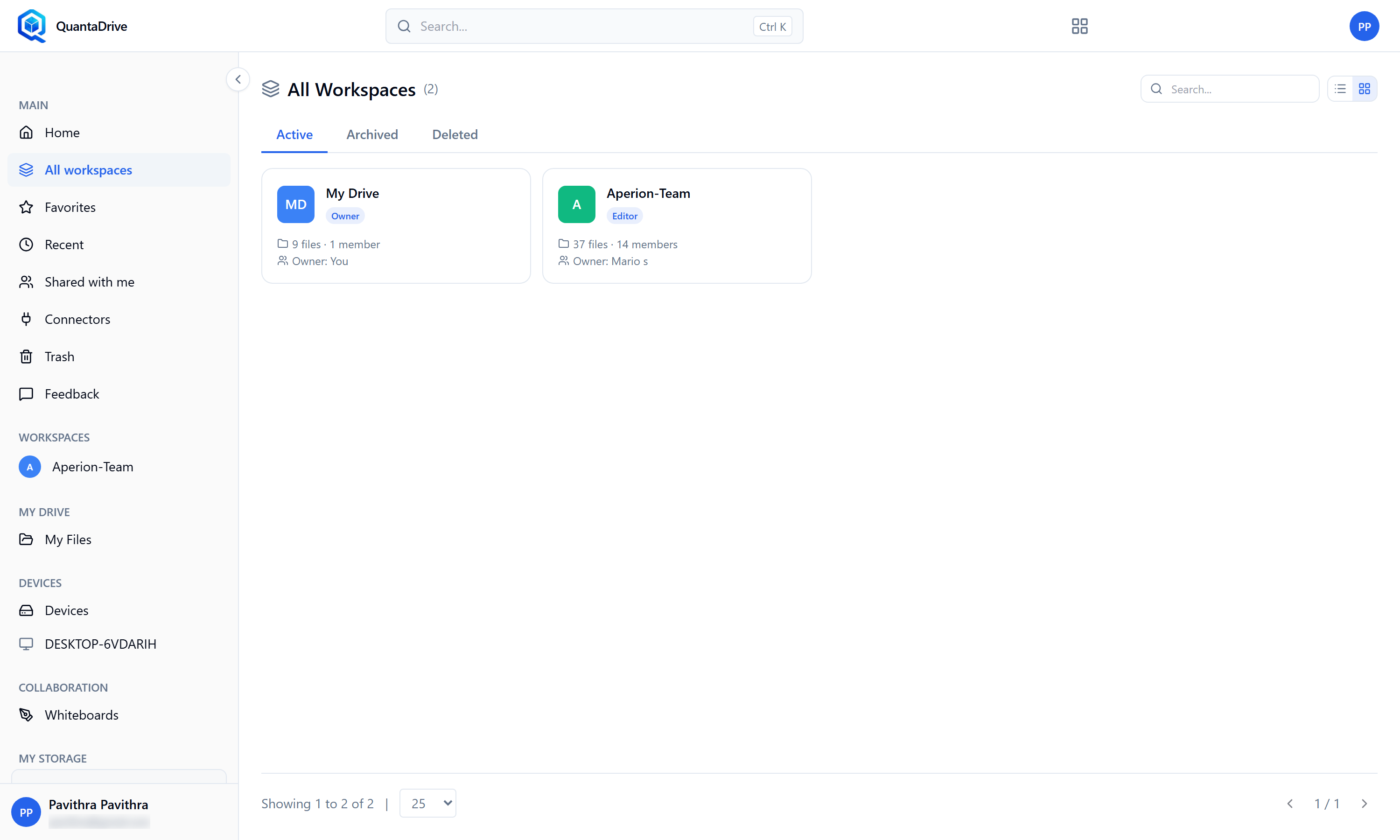
All Workspaces in card view. Each card carries your role as a badge — Owner, Editor, Commenter or Viewer — and the toggle beside the search box switches to a table with the columns described below.
Click Workspaces in the sidebar to see All Workspaces, a table with these columns:
- Name
Click it to open the workspace.
- Role
Your role in that workspace — Owner, Editor, Commenter or Viewer. This decides what the buttons let you do.
- Files
How many items it holds.
- Members
How many people and groups have access.
- Owner
Who is responsible for it.
- Created
When it was made.
The tabs across the top — Active, Archived, Deleted — choose which
workspaces are listed; Active is the normal view. Each card shows the
workspace name, its file and member counts, and your role in it. The
Search… box filters by name. If nothing matches you see No workspaces
match your search.
4.2. Where workspaces come from
You do not create workspaces yourself. Workspaces are created by your administrator, who then adds you to the ones you need.
If you have not been added to any yet, QuantaDrive greets you with Welcome to QuantaDrive and explains:
You don’t have any workspaces yet. Workspaces are created by your administrator. Once you’re added to one, your files and shared folders will appear here.
with the reminder Contact your administrator to be added to a workspace.
To get access, ask your administrator which workspace your team uses and to add you to it. Tell them the role you need — Editor if you will upload and change files, Viewer if you only need to read them. Part 10.3 lists what each role can do.
Everything you keep to yourself can go in My Files meanwhile (Part 07), which needs no workspace at all.
4.3. Inside a workspace
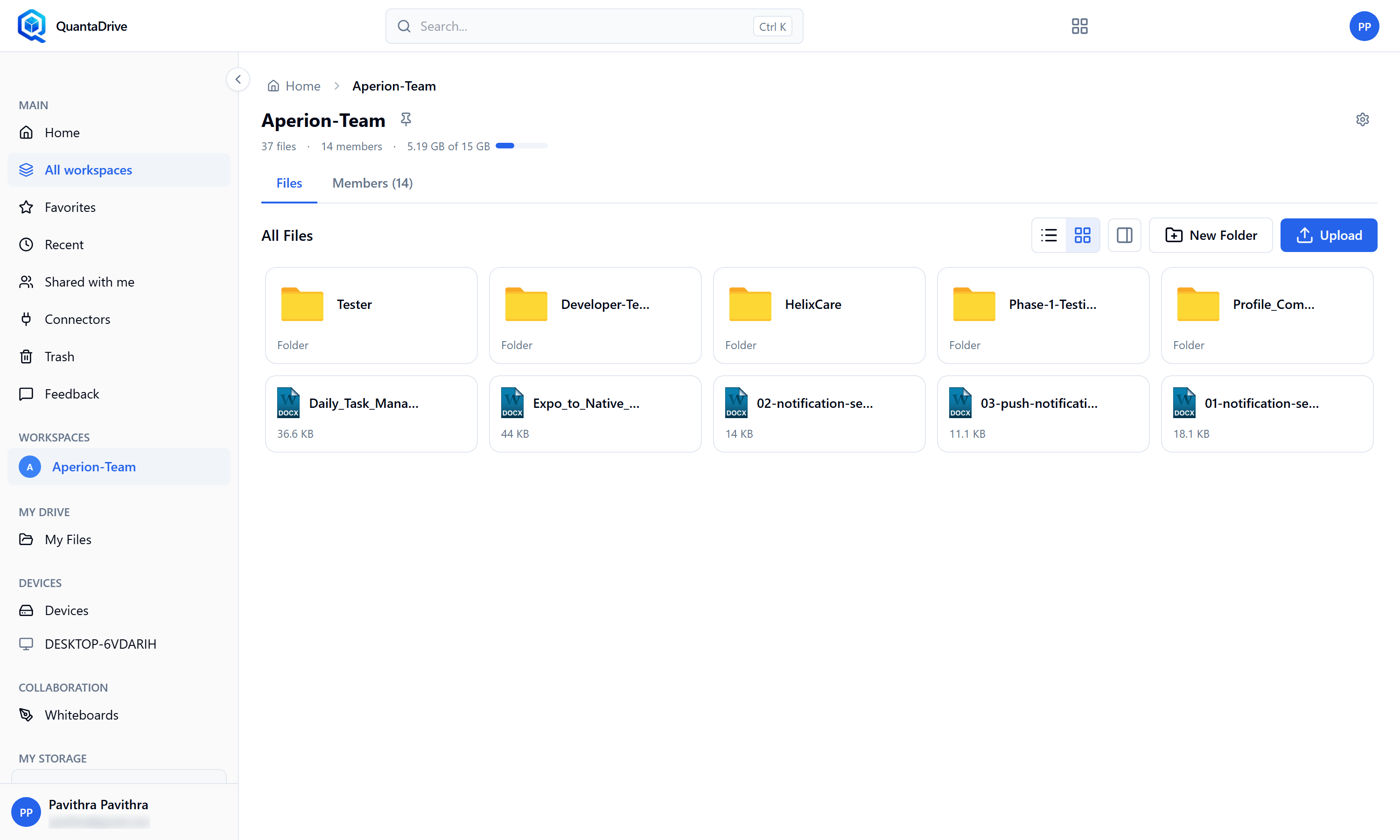
Inside a workspace. The Files and Members tabs sit under the workspace name; the gear at the top right opens Settings.
Files — the folder browser, covered in Parts 05 and 06.
Members — who has access, with a count beside the tab. Covered in Part 10.
Above them sits a breadcrumb trail starting at Home, then the workspace name, then each folder you have opened. Click any part of it to jump back.
4.4. Pinning a workspace
Pinning keeps a workspace at the top of your sidebar. It affects only your own view — nobody else sees your pins. Unpin the same way.