3. Getting around
Part 03
Every signed-in page has the same three frames: a sidebar on the left, a bar across the top, and the page itself in the middle. Learn these once and the rest of the product is navigation.
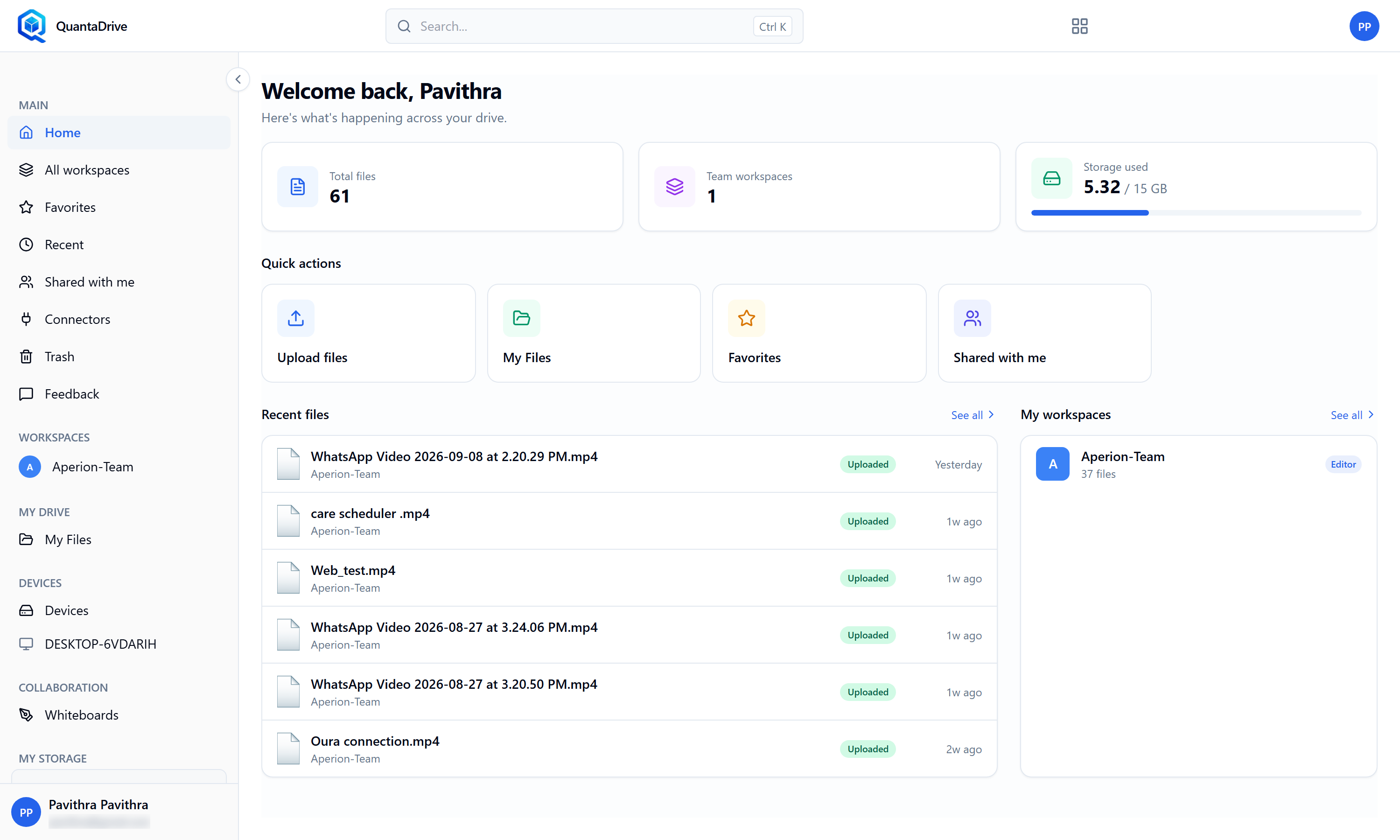
The Home page, headed Welcome back with Here’s what’s happening across your drive. The sidebar and top bar are the same on every QuantaDrive page.
Home opens on three counts — Total files, Team workspaces and Storage used (with a bar showing how much of your allowance is gone). Under them, Quick actions offers Upload files, My Files, Favorites and Shared with me. Below that, Recent files lists what you touched most recently and My workspaces shows each workspace with your role in it and its file count.
3.2. The top bar
Search — the box marked
Search…searches the list you are currently looking at.All apps — the grid icon returns you to the Hub so you can switch product.
Your account — your avatar or initials opens the menu with your profile and the sign-out command.
3.3. Things that follow you between pages
The upload panel — appears in the corner as soon as an upload starts and stays there while you browse elsewhere. Uploads keep running.
The operations bar — shows long-running jobs such as copy, move and restore, with their progress.
One thing to avoid
Closing the browser tab cancels uploads in progress. Moving to another page inside QuantaCloud does not. Wait for the upload panel to read Uploaded before you close the tab.
3.4. Messages
Confirmations and errors appear as small notices at the top-right, one at a time. Each has a close button; closing one shows the next in the queue.