5. Users
Part 05
/admin/users · Platform scope. Three kinds of account live here, each in
its own view with its own search box: local users, directory users and
SaaS users. Which you use depends on how your organisation authenticates.
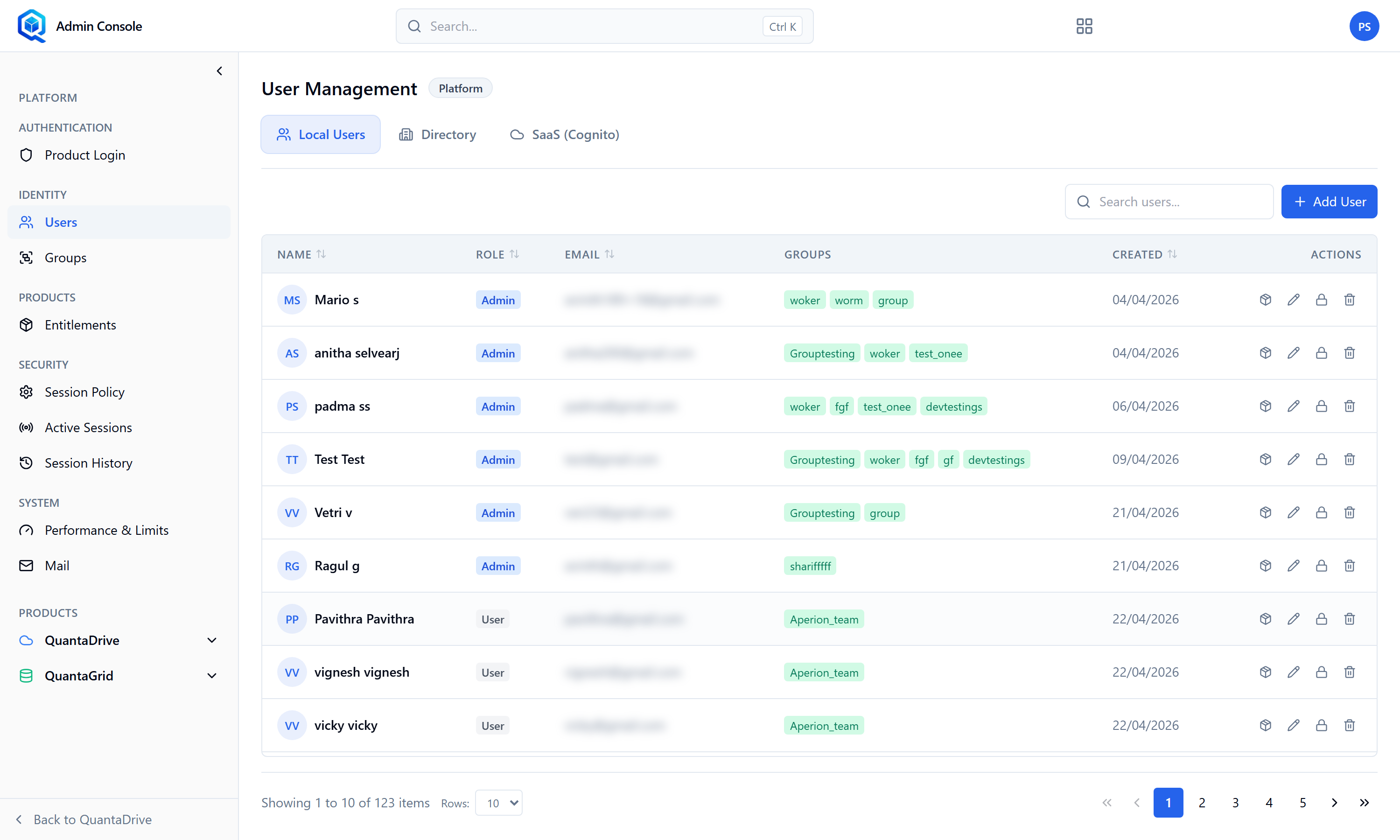
The Users page. Local, directory and SaaS accounts each have their own view.
5.1. Creating a local user
The page is headed User Management with a Platform badge, and splits the accounts across three tabs: Local Users, Directory and SaaS (Cognito). The table lists NAME, ROLE, EMAIL, GROUPS and CREATED, each sortable, with an ACTIONS column at the right holding four icons per row — product access, edit, lock/unlock and delete. Under the table, Showing 1 to 10 of N items and a Rows selector control paging.
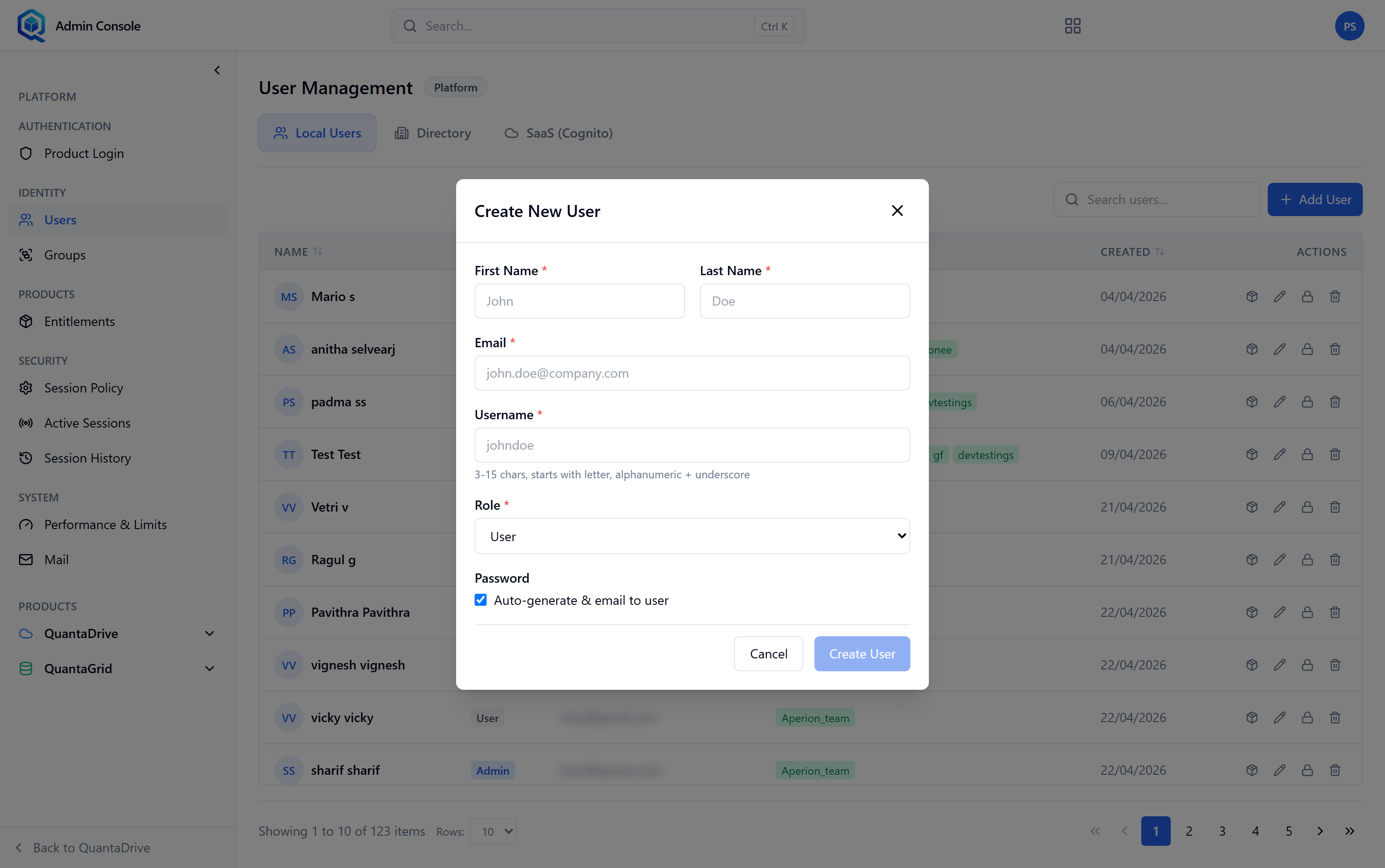
The Create New User dialog. The password you set here is temporary — the person must change it at first sign-in.
Press Add User
The button sits at the top right, beside the
Search users…box. The Create New User dialog opens.Fill in the four required fields
First Name — e.g. John.
Last Name — e.g. Doe.
Email — e.g. john.doe@company.com. Must be unique; the page checks availability as you type.
Username — e.g. johndoe. Also checked for uniqueness. This is what the person types at sign-in.
Set the Role
Admin or User. See 1.1 before choosing Admin.
Set a Password
This is temporary. The person is forced to change it on first sign-in, so it does not need to be memorable — it needs to be delivered safely.
Create
Grant a product on the Entitlements page
Do not skip this. Without it the new account signs in to nothing and reports the account as broken.
5.2. Editing a user
The pencil icon on a row opens Edit User, which changes First Name, Last Name, Email and Role. The Role selector offers Root, Admin and User, but a Root account is protected: Root role cannot be changed.
5.3. Unlocking an account
Five failed sign-in attempts lock an account, and it unlocks itself 15 minutes after the last attempt — most people never need you. Act only when someone cannot wait, or is still locked out well past that. Use the padlock icon on their row — it both unlocks the account and clears the failed-attempt counter. If the same account locks repeatedly, the cause is usually a saved old password on a phone or a mail client, not an attacker.
5.4. Deleting a user
The bin icon removes the account after a confirmation. Before you delete:
Check what they own. Workspaces they own need ownership transferred first, or the workspace is left without an owner.
Their files stay. Deleting the account does not delete the files they uploaded into shared workspaces.
Consider suspending instead if the departure may be temporary — revoking their product entitlement stops access without destroying the account.
5.5. Directory users
Accounts imported from an AWS or Azure directory, marked: Users imported from AWS/Azure directory. Manage via directory service. Change names, emails and membership in the directory itself; QuantaCloud reflects what it imported. Use Directory Import (Part 17) to pull them in and to re-pull membership later.
5.6. SaaS users
Accounts held in Amazon Cognito. Use Invite SaaS User with First Name, Last Name, Email and Role. Two things behave differently here:
Email is Managed by Cognito — change it in the user pool, not in QuantaCloud.
Delete SaaS user warns that it removes the user from Cognito and the app — both, not just the app.
The page tells you when this cannot work rather than failing silently. Each message names the thing to fix:
- Cognito is not configured on this server
The server has no Cognito settings. The page names the missing values, such as COGNITO_CLIENT_ID.
- Cognito is configured but unreachable
Settings exist but the pool cannot be contacted — wrong region, wrong pool id, or expired credentials.
- Admin invitations are enabled; self-registration is not
You can invite people, but they cannot sign themselves up. This is a deliberate configuration, not an error.