6. Groups
Part 06
/admin/groups · Platform scope. Groups are the single biggest saving in
day-to-day administration. Grant access to a group once, and joiners and
leavers manage themselves.
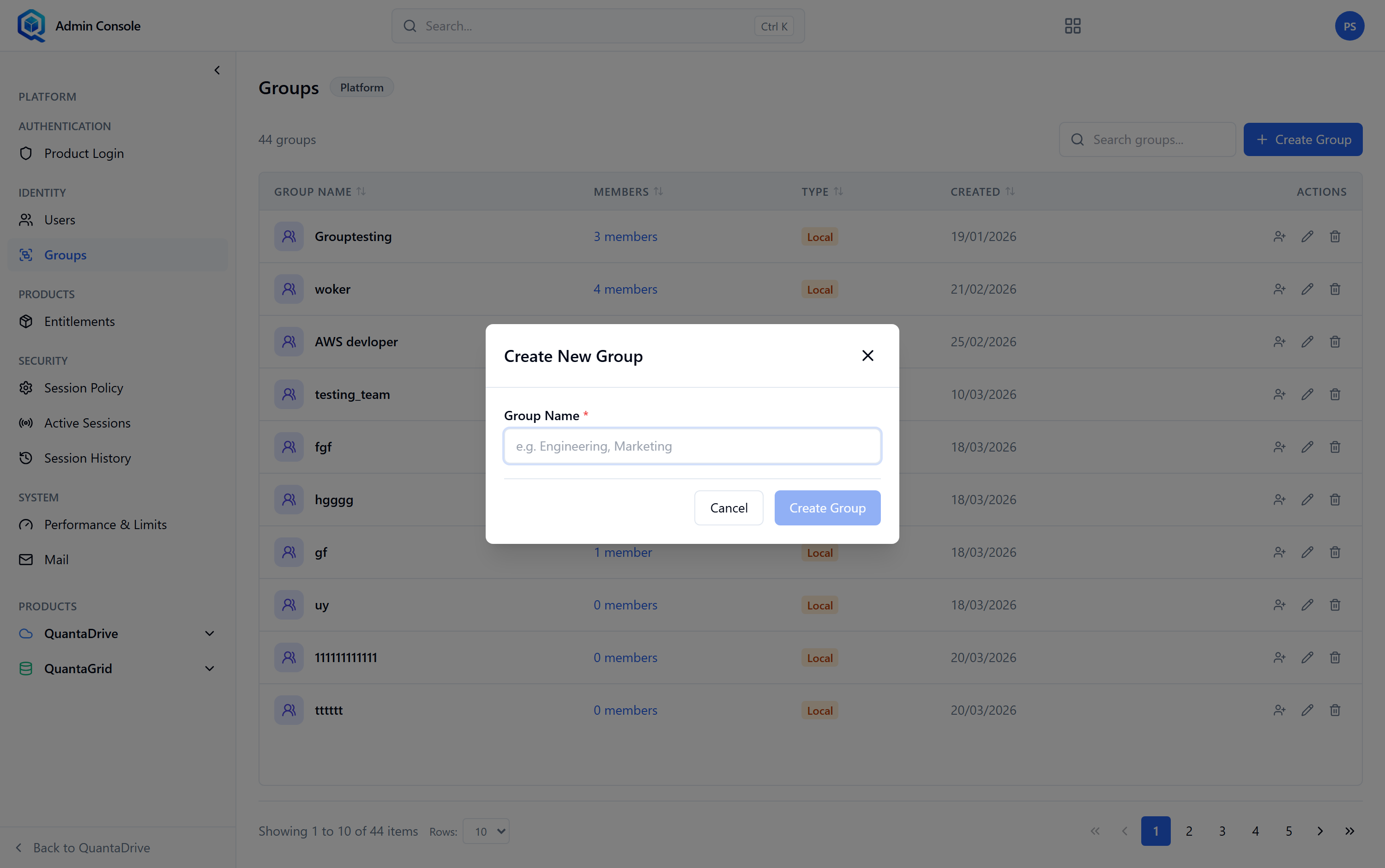
The Create New Group dialog asks only for a name.
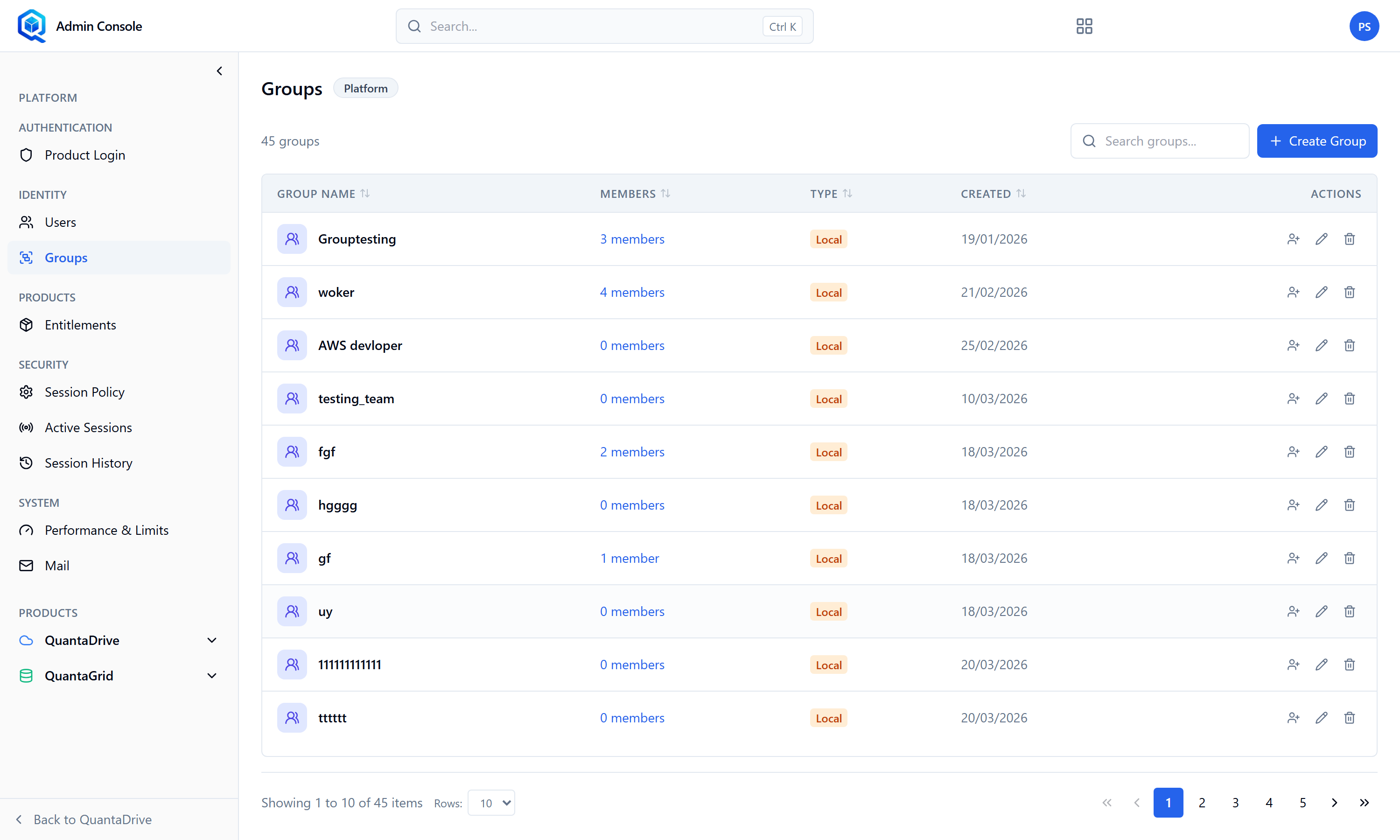
The Groups page. Grant access to groups, not individuals.
Press Create Group
The table lists Group Name, Members, Type, Created and Actions. The dialog asks only for a Group Name — e.g. Engineering, Marketing. Name it after the team or the function, never after the permission it happens to carry today.
Assign users to it
Open the group and add members. The list shows current members with a count.
Use the group wherever access is granted
Workspace owners can add a group to a workspace instead of ten people. Everyone in the group gets the role you chose.
Maintain it, not the grants
When someone joins the team, add them to the group and every workspace access follows. When they leave, remove them once.
Rename Group changes the display name and nothing else. Delete Group removes the group and every access that came through it — check what it grants before deleting, because the loss of access is immediate and silent to the people affected.
Directory groups
Groups pulled from a directory are kept in step by re-running the import, which re-pulls members for groups already imported. See Part 17.