15. QuantaGrid — browsing your own cloud storage
Part 15
QuantaGrid is a different tool from QuantaDrive. Instead of managed workspaces, it gives you a direct browser onto your organisation’s own cloud storage — Amazon S3 buckets and Azure Blob containers. You will only see it if it is entitled to your account.
What you can reach in QuantaGrid is decided by your own cloud access, not by QuantaCloud. A bucket your account cannot read is listed but marked Access denied.
15.1. Choosing a storage provider
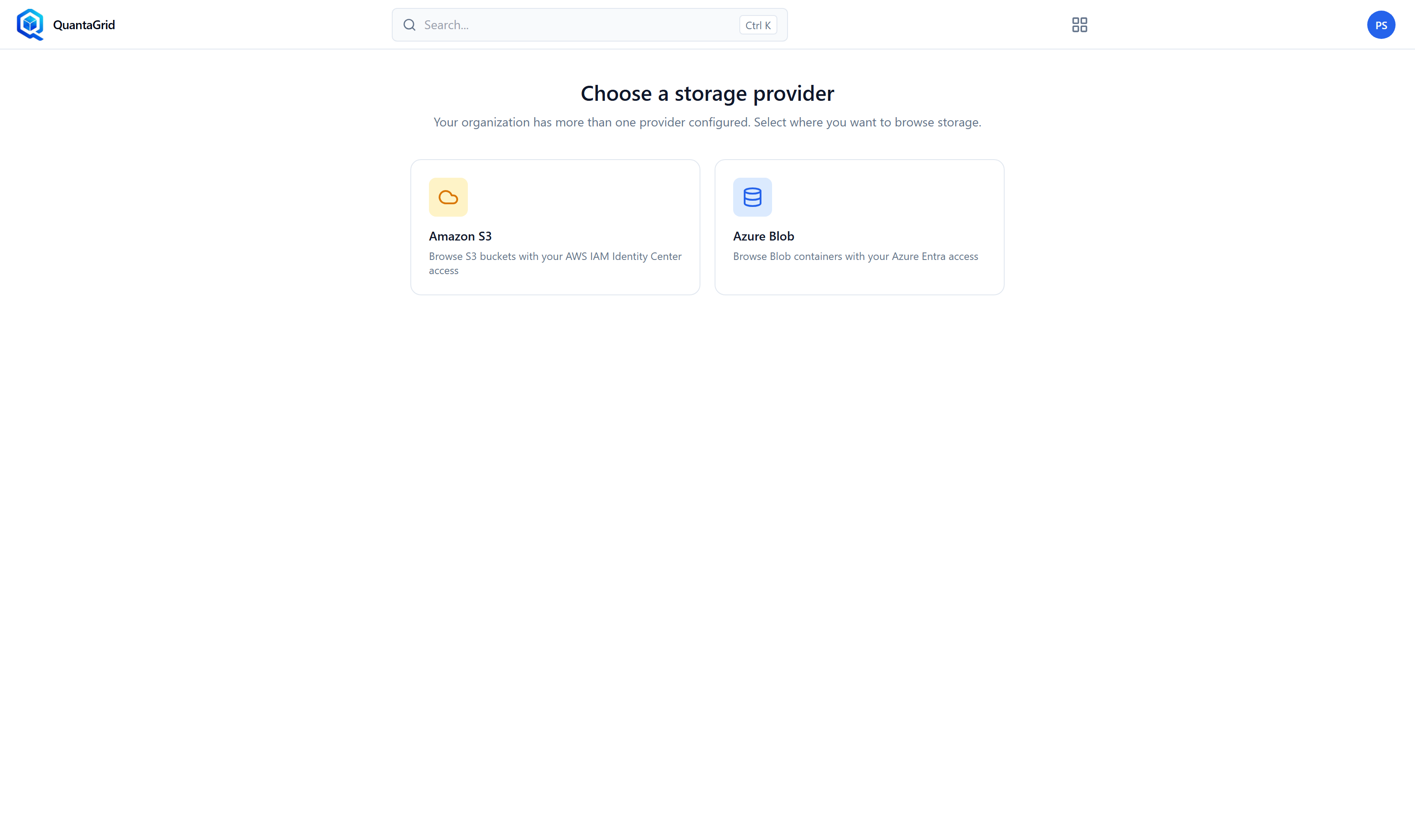
The provider chooser, shown when more than one provider is configured.
Opening QuantaGrid shows Choose a storage provider — Your organization has more than one provider configured. Select where you want to browse storage.
- Amazon S3
Browse S3 buckets with your AWS IAM Identity Center access.
- Azure Blob
Browse Blob containers with your Azure Entra access.
Click a card to enter. If your organisation has only one provider configured, you go straight in without being asked.
15.2. The Explorer
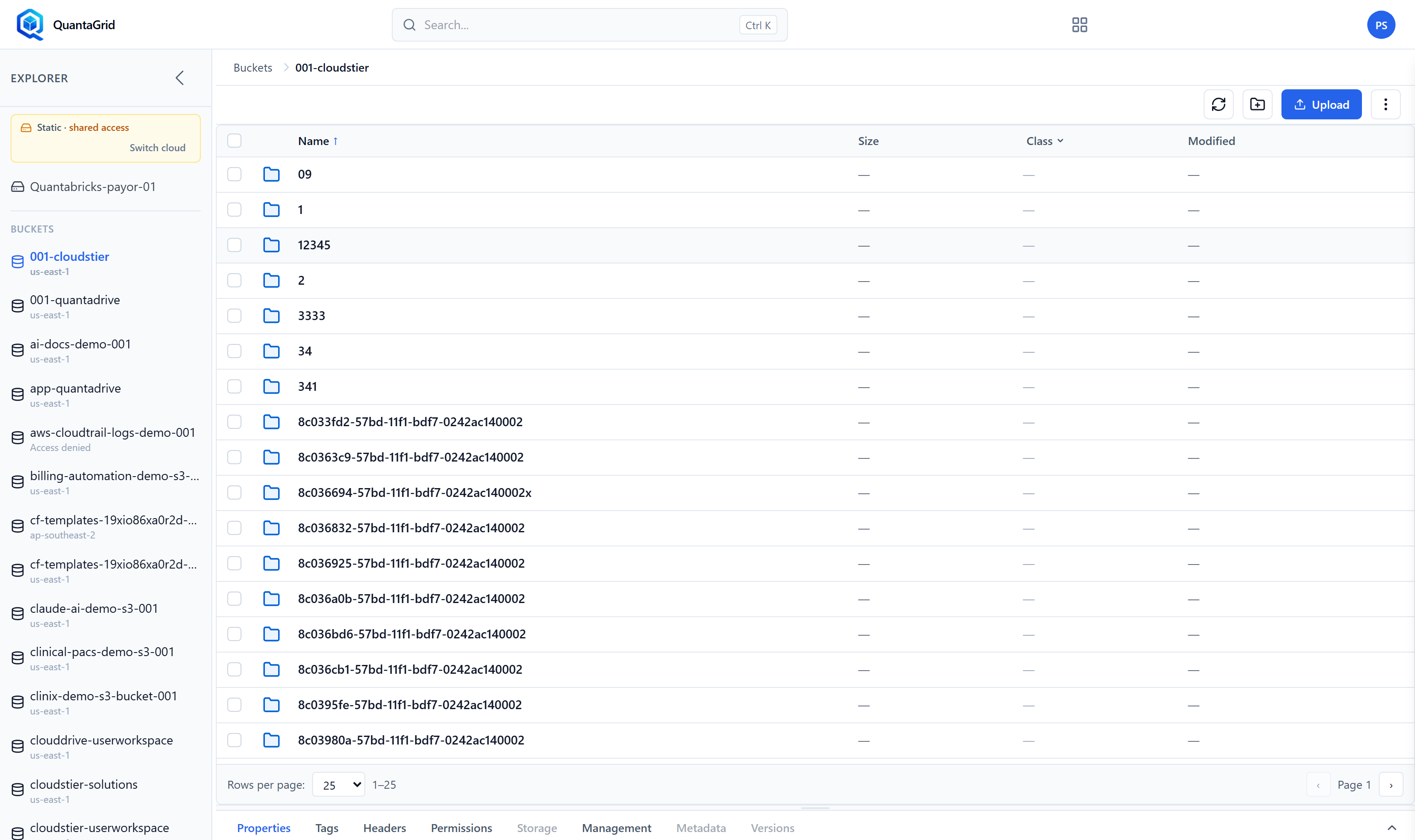
The Explorer sidebar. Buckets are listed with their region underneath; one here is marked Access denied.
The panel on the left is headed Explorer and holds, from the top:
- Access mode
A badge showing how you are connected — for example Static · shared access — with a Switch cloud link beside it for returning to the provider chooser.
- The account
The cloud account you are browsing, such as Quantabricks-payor-01.
- Buckets
Every bucket the account can see, each with its region underneath (us-east-1, ap-southeast-2, and so on). A bucket you have no permission to read shows Access denied in place of its region.
Click a bucket to open it. The arrow at the top of the panel collapses it and gives the object table more room.
15.3. Browsing a bucket
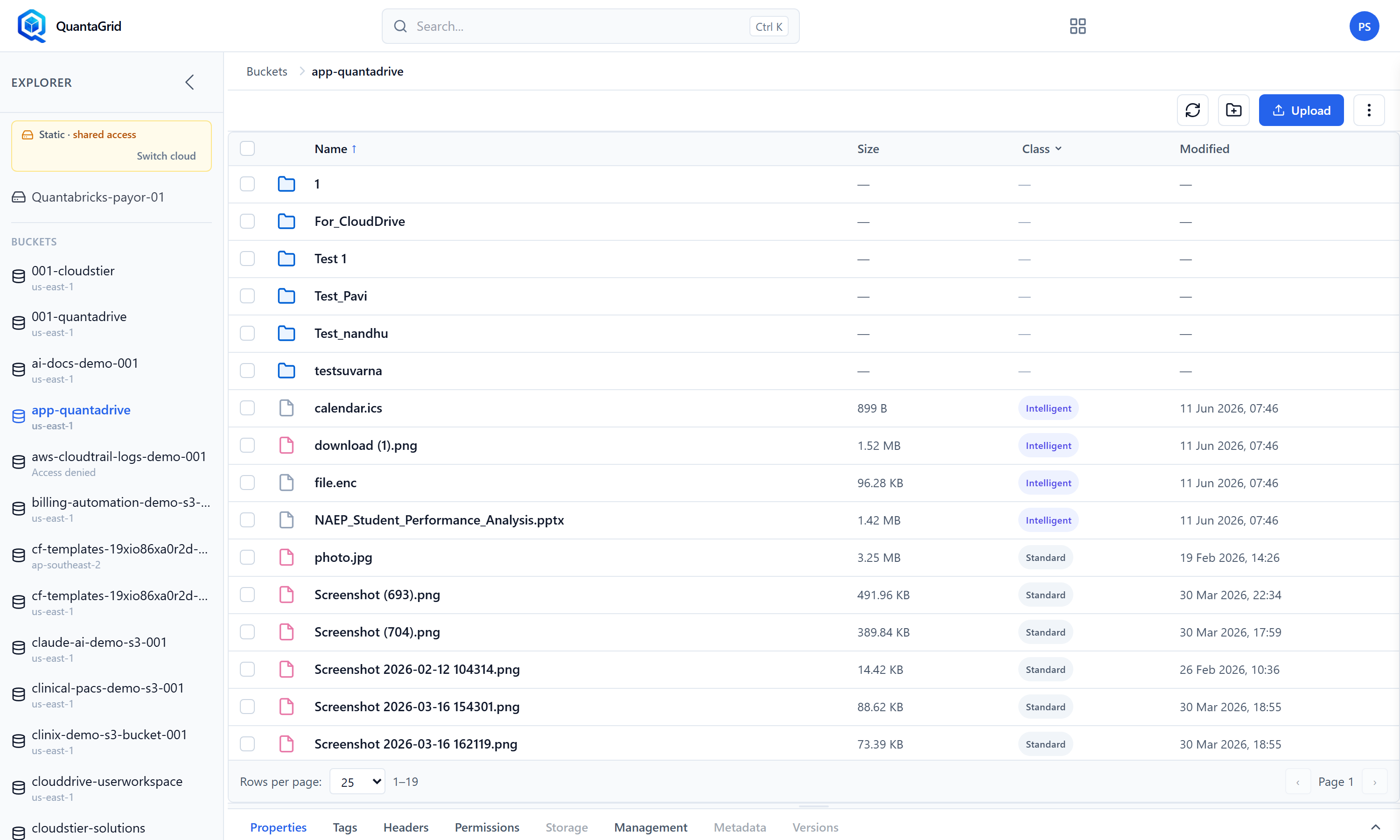
Inside a bucket. Folders sort first, then objects with their size, storage class and modified date.
The breadcrumb starts at Buckets and then names the bucket and each folder you have opened; click any part of it to go back up. The table has four columns:
- Name
The object or folder. Click a folder to go into it. Name and Class can be sorted by clicking the column heading.
- Size
The object size. Folders show a dash.
- Class
The storage class the object is stored in.
- Modified
When it last changed.
The tick box at the left of each row selects it, and the box in the heading selects everything on the page. At the foot of the table, Rows per page sets how many objects are listed at once and the arrows move between pages.
Above the table on the right are, in order: a refresh button, a new folder button, the Upload button, and a ⋮ button holding the rest of the actions.
15.4. What you can do with objects
Tick an object and an action bar appears above the table, showing how many are selected and offering Download, Copy, Move, Change class, Rename and Delete. The ✕ at its right clears the selection.
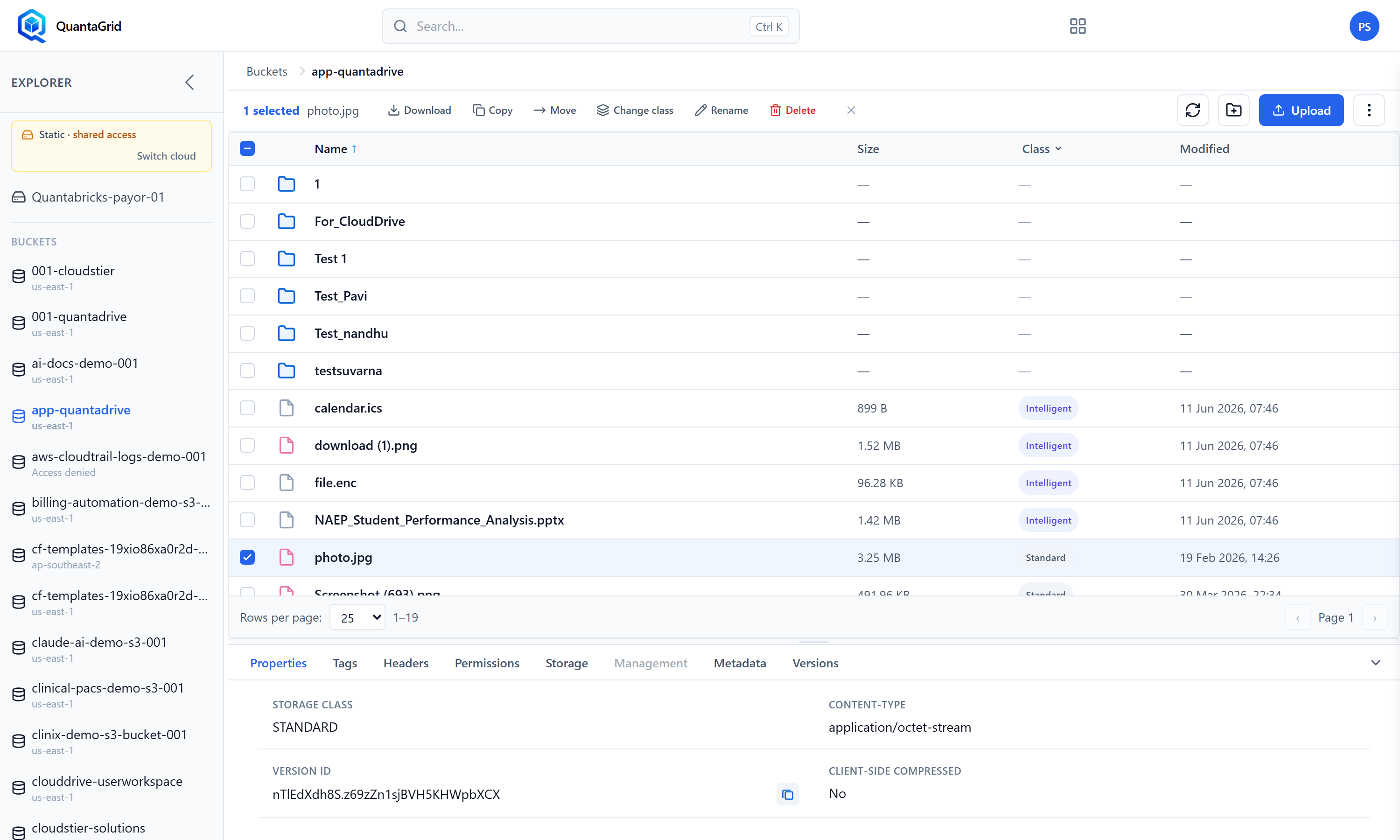
photo.jpg selected. The action bar sits above the table; the detail
panel below it opens on Properties.
The ⋮ button at the top right holds the fuller list, whether or not anything is selected:
- Preview
Opens the object to look at without downloading it.
- Download
Fetches the selected objects to your computer.
- Upload
Sends files into the folder you are currently viewing — the same as the Upload button.
- Copy
Copies the selected objects to another location.
- Move
Moves them to another location.
- Storage Class
Changes the storage class the objects are stored in. Check retrieval costs before moving anything to an archive class.
- Delete
Removes the selected objects. On a bucket with versioning switched on this leaves a delete marker rather than erasing history.
- Recover
Undoes a delete on a versioned bucket by removing the delete marker.
- Initiate Restore
Starts bringing archived objects (Glacier and similar) back to a readable state. This is not instant — the wait depends on the retrieval option.
15.5. The detail tabs
With an object selected, the panel along the bottom of the window carries eight tabs. Properties opens first, showing values such as the storage class, content type and version id. A tab that does not apply to what you have selected is greyed out. The chevron at the right of the tab strip collapses and expands the panel.
- Properties
Size, type, dates and the object’s address.
- Tags
Key-and-value tags, used for cost allocation and lifecycle rules.
- Headers
The HTTP headers stored with the object.
- Permissions
Who and what can reach it — the access control list.
- Storage
The storage class, encryption setting and related storage details.
- Management
Bucket-level rules: lifecycle, replication and inventory.
- Metadata
System and custom metadata.
- Versions
Previous versions and delete markers, on buckets where versioning is on.
If a bucket will not open
Access denied beside a bucket means your cloud account has no permission to read it. That is a permission in AWS or Azure, not a QuantaCloud setting — ask whoever administers that cloud account. If listing stops working across the board, your temporary storage credentials have probably expired; use Switch cloud and sign in to the provider again.