11. Whiteboards
Part 11
Whiteboards are drawing canvases that live in a workspace like any other file, and that several people can work on at the same time. They are saved with a .qdraw extension.
11.1. The whiteboards list
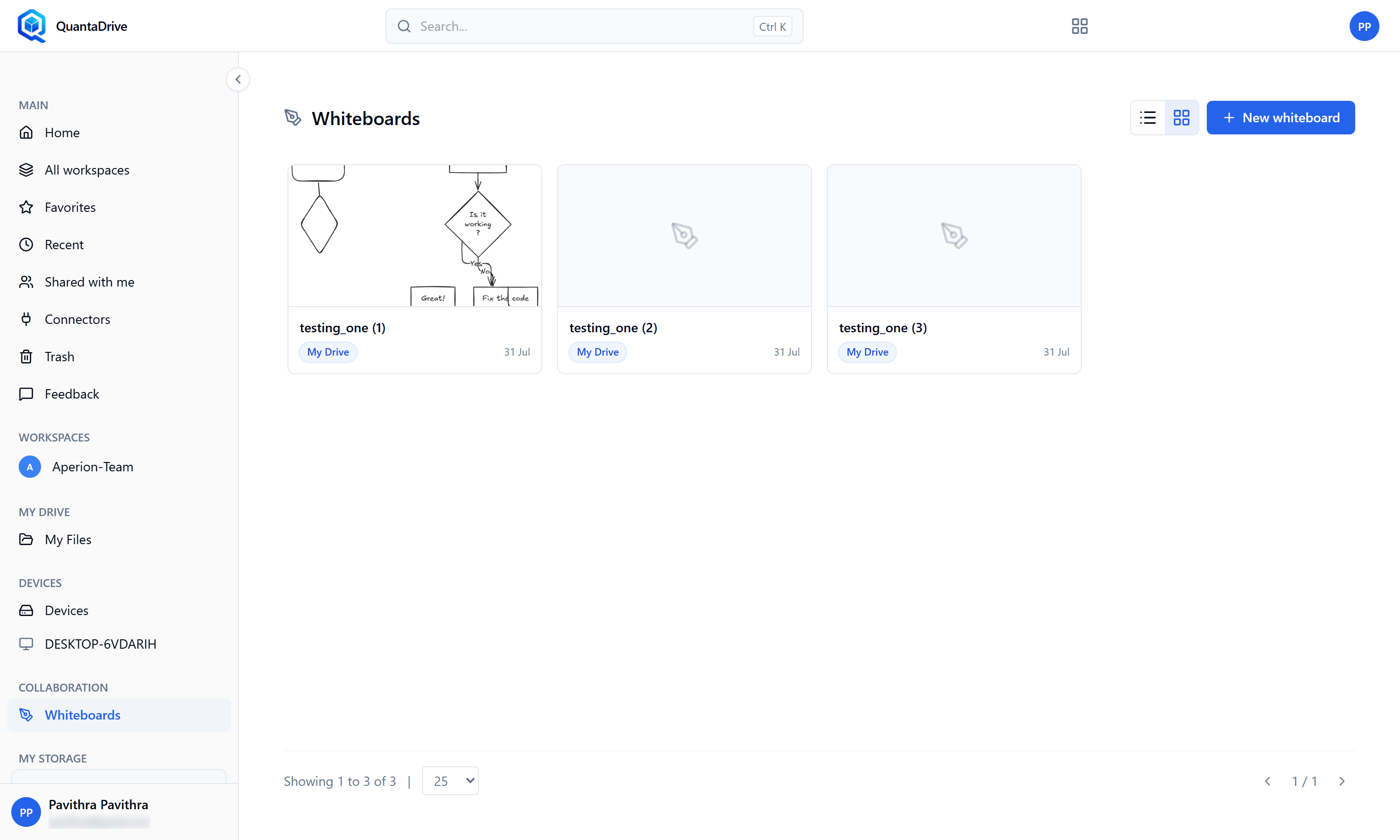
The Whiteboards list, with every board you can reach across all workspaces.
Click Whiteboards in the sidebar to see every board you can reach, across all workspaces, with columns for Name, Workspace, Created, Modified and Size. Empty, it reads No whiteboards yet.
11.2. Creating a whiteboard
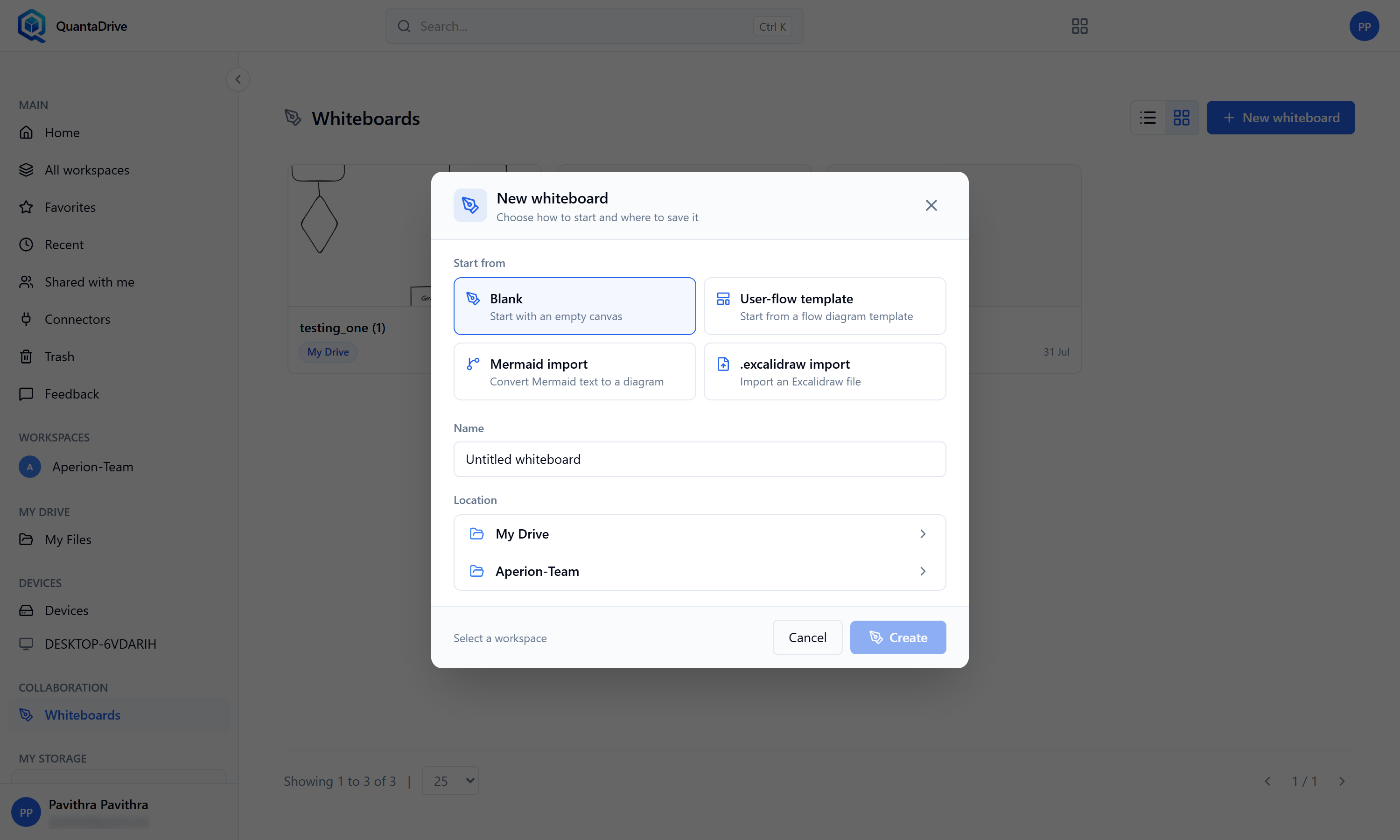
The New whiteboard dialog — choose what to start from, name the board, pick its location.
Press the new-whiteboard button
The New whiteboard dialog opens.
Choose what to Start from
Blank — an empty canvas.
User-flow template — a ready-made flow diagram (start, screen, a yes/no decision, an action, an end) already wired together with arrows.
Mermaid import — paste Mermaid diagram text and it is drawn for you.
.excalidraw import — upload an existing Excalidraw file and continue it here.
Give it a name
Choose the Location
Which workspace and folder it is saved in. This decides who can find it.
Create
The board opens full-screen, ready to draw on.
11.3. Working on a board
Saving is automatic. There is no save button.
Working together — when someone else opens the same board you see their changes as they make them, and they see yours.
Comments — the comments panel lets you leave notes on the board for colleagues.
Versions — the versions panel keeps earlier states of the board so you can look back or return to one.
Export — saves the board out as an image or file for people who do not use QuantaCloud.
Leaving — use your browser’s back button. Your work is already saved.
11.4. Renaming a board, and who can see it
From the whiteboards list, use the item menu and Rename whiteboard.
A board is reached the same way as any other file: everyone who is a member of the workspace it was saved in can open it, according to their role. That is why the Location you choose when you create the board (11.2) decides who can find it. To let someone else in, add them to that workspace — see Part 10.