12. Devices and desktop sync
Part 12
The QDrive desktop app backs up folders from your computer into QuantaCloud automatically. The Devices page is where you register a computer and then browse what it has sent up.
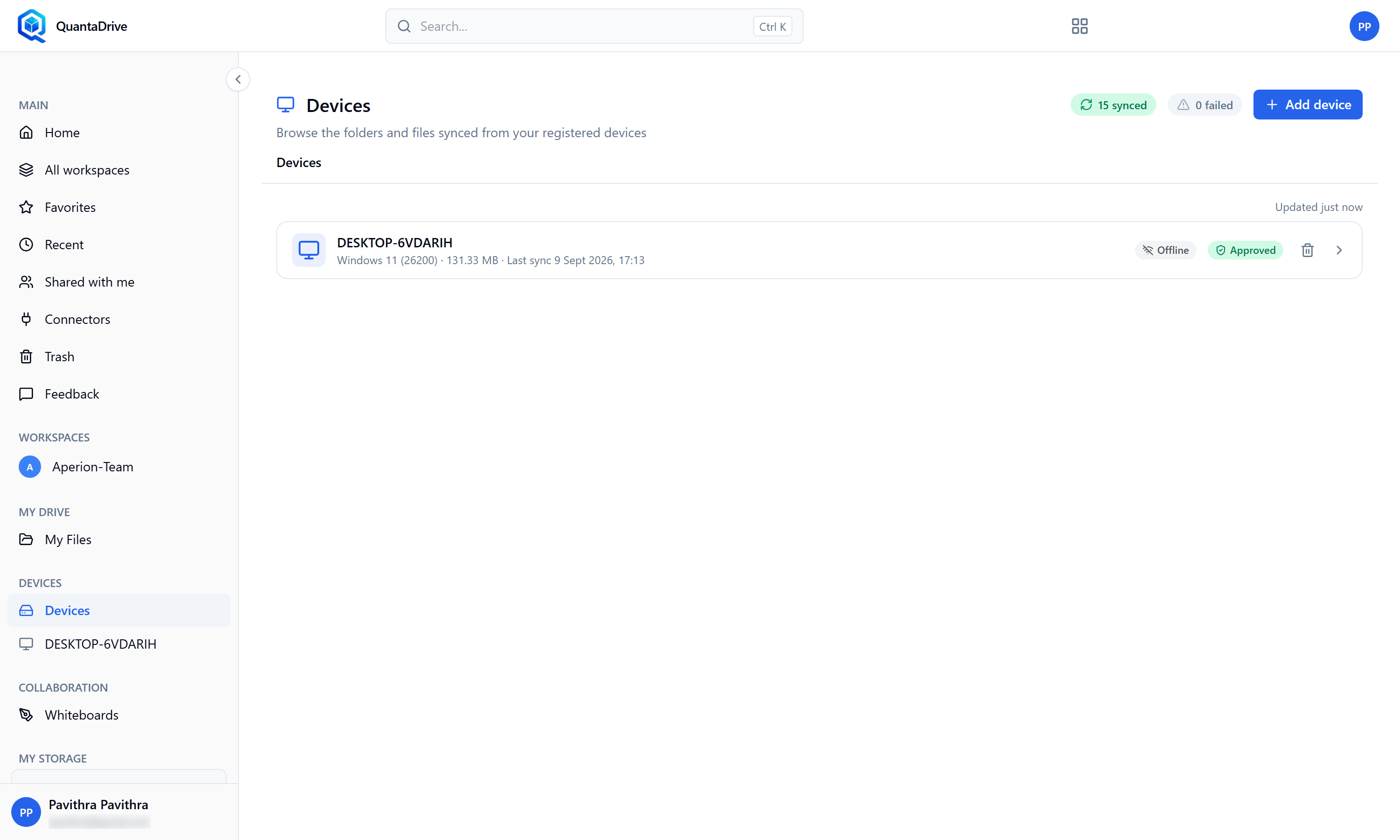
The Devices page. Add device (top right) generates the pairing code for the QDrive desktop app; the badges beside it count synced and failed files.
12.1. Setting up the QDrive desktop app
One account for everything
The desktop app uses the same username and password you use to sign in to QuantaCloud in the browser. There is no separate desktop account to create. The desktop app asks for a username and password only — it has no Continue with Google or SSO button.
Set up a computer in this order. Keep the web app open in your browser, you need it for step 4.
Install the QDrive desktop app on the computer
Your administrator supplies the installer.
Open QDrive and sign in
The app shows Starting Qdrive…, then Welcome to Qdrive — Enter your credentials to continue. Type your QuantaCloud Username and Password and press
Login. A wrong entry shows Invalid username or password; an empty field shows Please fill out username and password.The app asks you to register this device
The screen reads Register this device: In the QuantaDrive web app, open Devices → Add a device to get a one-time pairing code, then enter it below.
Get the pairing code from the web app
In your browser, open Devices and press
Add device. The Add a device dialog generates a code (Generating code…). PressCopy; the button confirms Copied.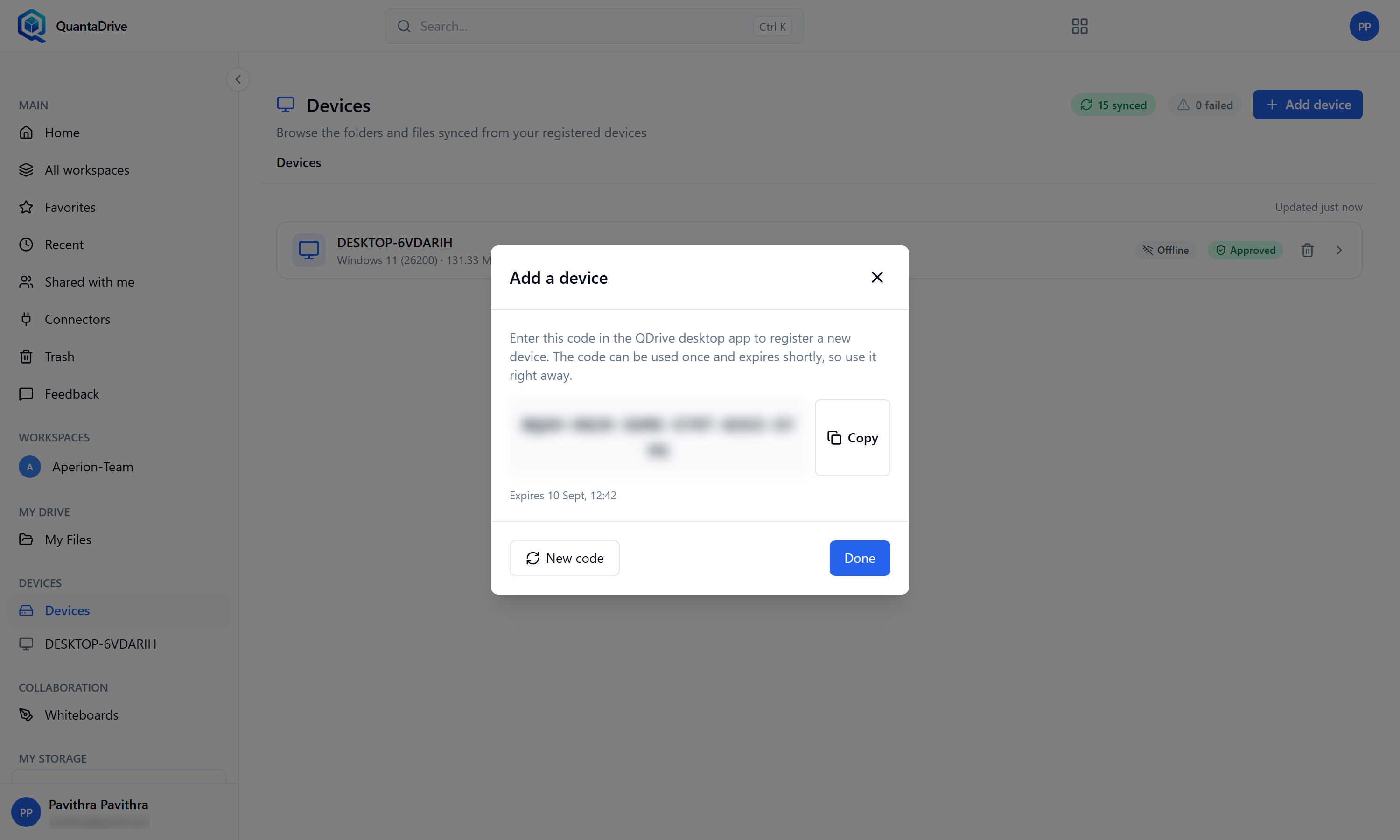
The Add a device dialog. Copy the code into the QDrive desktop app before it expires; New code issues a fresh one.
Paste the code into the desktop app
Paste it into the Pairing code box and press
Register device. The app confirms Device registered. Each code registers one device, can be used once and expires shortly — if it is rejected, pressNew codein the web dialog and try again. PressDonein the web dialog afterwards.Name your library
The app shows Create a Library. Type a Library name (for example My Library) and continue. A library is the catalog QDrive keeps of the folders it backs up; your files stay where they are.
Add a location — choose the folder to back up
This is the step that decides what gets backed up. On Add a Location, press
Choose folderand pick the folder on your computer — for example Documents or a project folder. Everything inside that folder is uploaded to QuantaCloud and kept up to date. Picked the wrong one? PressChoose a different folder.On macOS, if the app shows Permission denied for this folder, press
Open Settingsand allow QDrive access to that folder.Finish setup
Ready to Go! shows the library name and the primary location. Press
Create Library. QDrive starts uploading straight away.Check the computer in the web app
Back in the browser, the computer now appears on the Devices page with its connection status and when it last synced. Until the first upload finishes it reads Never synced.
12.2. Adding or removing folders later
In the desktop app, open Locations — Folders Qdrive keeps backed up on
this device. Press Add library to back up another folder the same way.
To stop backing one up, delete it from the list and confirm Remove folder
from backup: Qdrive stops syncing this folder. Your files on disk are not
deleted.
12.3. Browsing what a device has backed up
The page is described as Browse the folders and files synced from your registered devices. Click a device to see its libraries, click a library to see its folders and files, and keep going deeper. The breadcrumb — device, library, folders — takes you back up. Use the download action on a file to pull a copy down.
12.4. Reading the status badges
- Synced
Green. The file is safely stored in the cloud.
- Syncing
Amber with a spinner. Upload is in progress. Leave the computer on and connected.
- N synced
At the top of the page: how many of your files are backed up in total. A zero genuinely means nothing has been backed up yet.
- Backup failed
Some files could not be uploaded. Check the desktop app is running and signed in, and that the files are not locked open by another program.
12.5. Removing a device
Remove device unlinks a computer from your account — do this when you
replace a laptop or lose one. The device stops syncing. Removal can take a
moment while the link is torn down.
If sync stops without an obvious reason
Everything else in QuantaCloud can look perfectly healthy while sync alone is broken. Check the desktop app is running and signed in, then tell your administrator, who can see the whole fleet on the Sync Monitoring page.