11. Mail
Part 11
/admin/settings/mail · Platform scope. Until this is configured,
QuantaCloud cannot send a single message: no password reset, no invitation, no
notification. Configure it early.
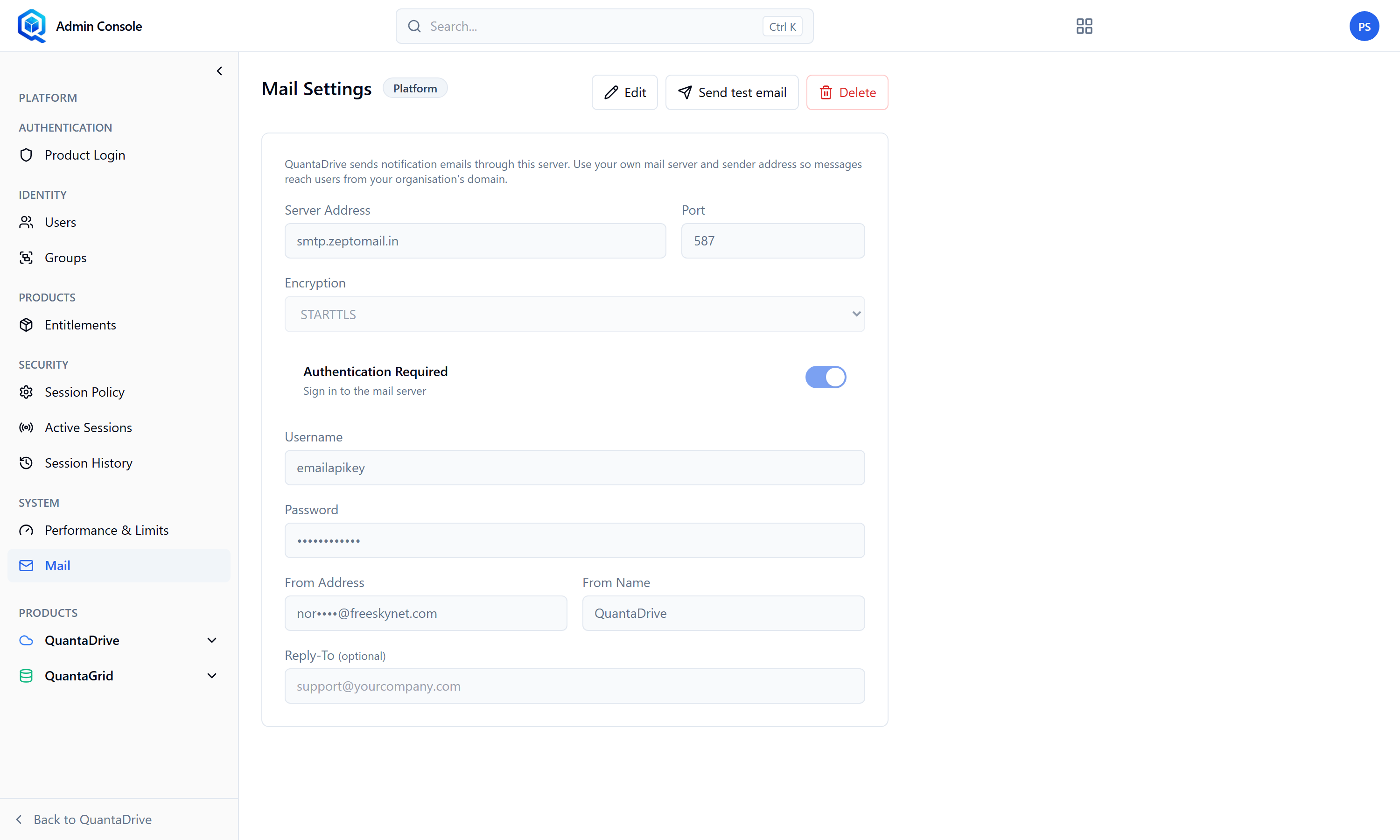
Mail settings. Until this is filled in, no password reset or invitation can be sent.
11.1. The SMTP fields
The page is headed Mail Settings and opens read-only. Edit unlocks the fields, Send test email proves the settings work, and Delete removes the configuration entirely.
- Server Address
Your SMTP host, e.g. smtp.yourcompany.com.
- Port
Conventionally 587 with STARTTLS, or 465 with SSL/TLS. Match it to the encryption setting below.
- Encryption
None, STARTTLS or SSL / TLS. Never choose None for a server reached over the internet.
- Username
The mailbox account, e.g. noreply@yourcompany.com.
- Password
That mailbox’s password or app password.
- From Address
What recipients see the mail come from.
- From Name
The display name shown beside it.
- Reply-To
Optional. Where replies should land, e.g. support@yourcompany.com — worth setting, since people will reply to a no-reply address regardless.
11.2. Testing it
Save the configuration
Send a test email to yourself
The page has a test action for exactly this.
Confirm it arrives, and check where it landed
If it goes to spam, your sending domain needs SPF and DKIM records — a DNS change, not a QuantaCloud setting.
Only then create user accounts
So every new account can receive its own temporary password.
If mail was never configured
Every “I never got the reset email” ticket traces back here. Check this page first; it is faster than investigating the user’s mailbox.