6. Working with files and folders
Part 06
Everything you can do to an item once it is in QuantaDrive. All of it works the same way in a workspace and in My Files.
6.1. Two ways to view a folder
Use the two icons above the list to switch between list view (a table with Name, size and dates) and grid view (tiles with thumbnails). Grid suits images; list suits documents. Your choice is remembered.
6.2. Selecting items
Click an item once to select it.
Hold Ctrl (Cmd on a Mac) and click to add more to the selection.
Click empty space in the list to clear the selection.
When you select something, an action bar appears with the actions that apply to it.
6.3. Creating a folder
Go to where the folder should live
Nested folders are made inside the folder you are viewing.
Press the new-folder button
The
New Folderbutton besideUpload.Type a name and confirm
The folder appears immediately and you can open it and upload into it.
6.4. The actions on an item
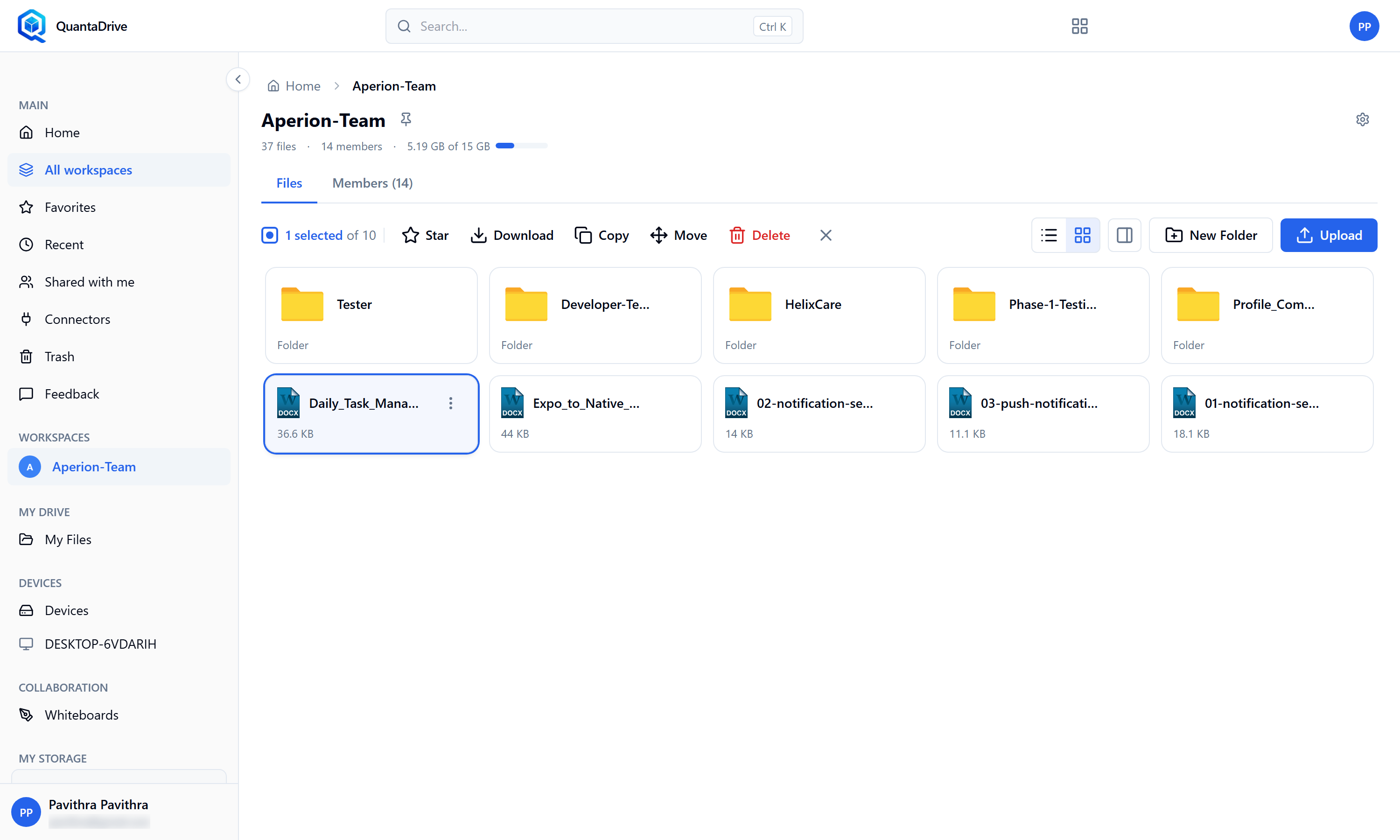
Select an item and the action bar appears: Star, Download, Copy, Move, Delete.
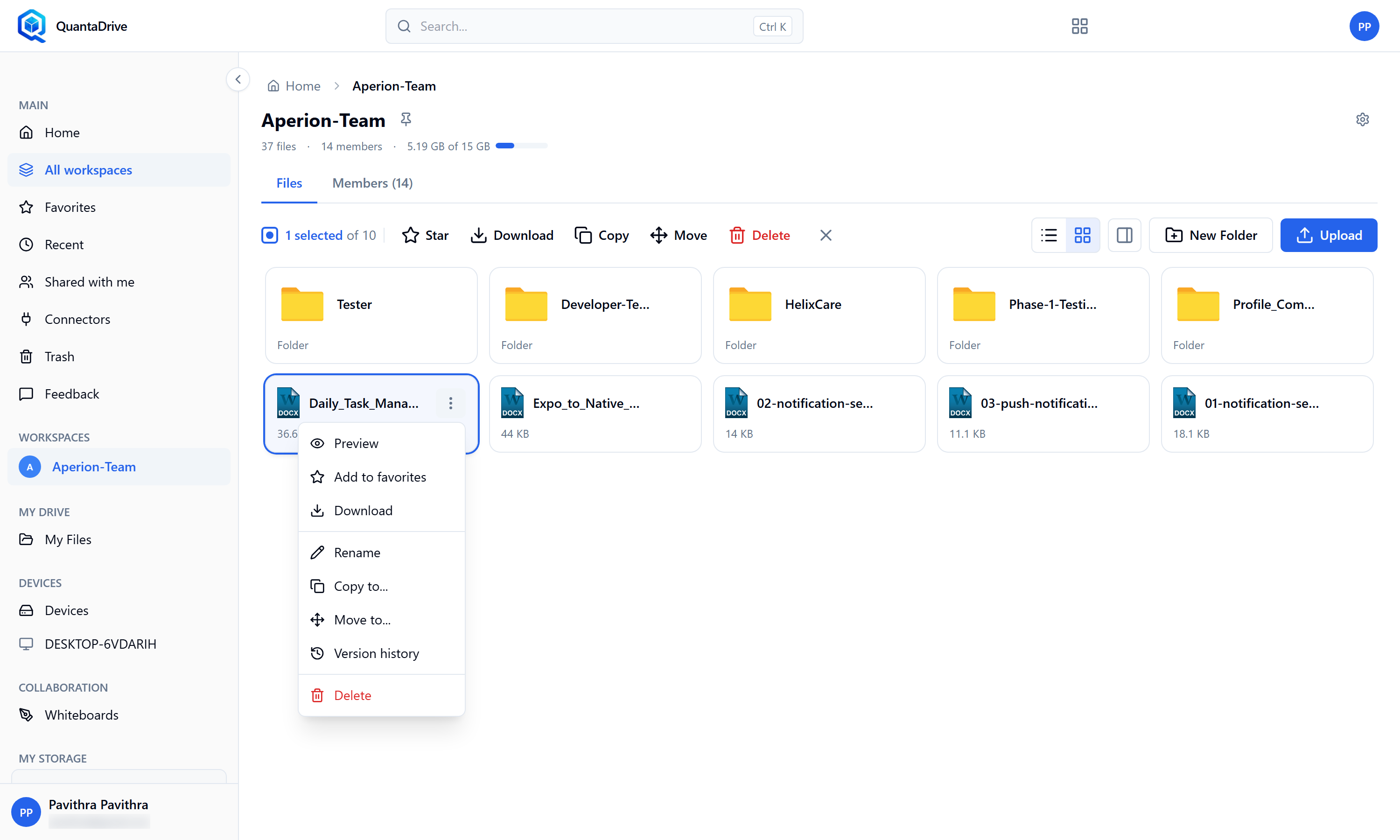
The item menu (the ⋮ button on a card): Preview, Add to favorites, Download, Rename, Copy to…, Move to…, Version history, Delete.
- Star
Adds it to Favorites. Starred items carry a small amber star in every list. Choosing Star again removes it.
- Download
Saves a copy to your computer. Selecting several items downloads them together.
- Rename
Opens a small box with the current name filled in. Change it and confirm; you will see Renamed successfully.
- Copy
Puts a second, independent copy somewhere else. See 6.5.
- Move
Relocates the item. See 6.5.
- Share
Creates a link for people outside the workspace. See Part 10. Share links are switched on per deployment; if
Shareis not in the menu, your organisation has not enabled them.- Delete
Sends it to Trash, where it can be restored. See Part 09.
Folders behave as one unit: deleting, restoring, copying or moving a folder takes everything inside it.
6.5. Copying and moving
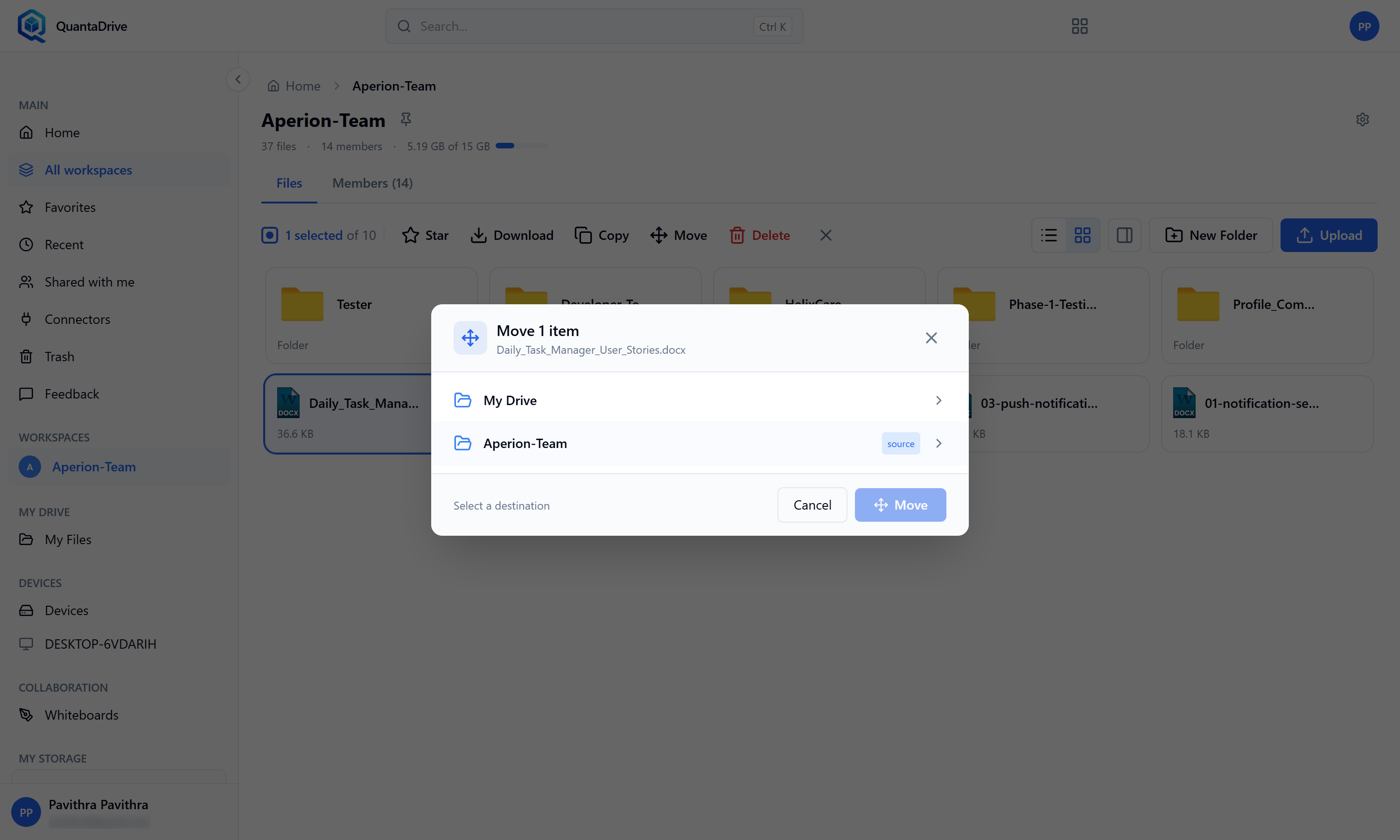
The Move dialog. Browse the tree or search for the destination folder, then confirm.
Select the items and choose Copy or Move
A destination picker opens.
Find the destination
Browse the folder tree, or type in
Search folders....This foldermarks the one you are currently looking at.Confirm
Until you pick somewhere, the dialog reads Select a destination and the confirm button stays disabled.
Watch the operations bar for large jobs
Copying or moving many files runs in the background. You can carry on working while it runs.
If something of the same name is already at the destination, you are asked the same Replace / Keep both / Skip question as for uploads.
6.6. The details panel
Select a single item and open the details panel with the panel button at the right of the toolbar. It slides in on the right and shows the item’s name, type, extension, size and creation date. With nothing selected it reads No item selected — Select a file or folder to view its details.
6.7. Version history
Every time a file is replaced, the previous content is kept as a version.
Select the file and open the details panel
Then switch to its Versions tab. Choosing Version history from the item menu opens the panel straight onto that tab.
Read the list
Each entry shows the version number, when it was created and how large it was.
Download an old version
To check it without changing anything.
Restore an old version
The old content becomes the current file. Nothing is destroyed — the version you restored from is still in the list.
How many versions are kept
A workspace owner sets the limit on the workspace Settings page, under workspace Settings page, which only they can open (Part 14). Once the limit is reached, the oldest version drops off when a new one is added.
6.8. Previewing a file
Double-click a file to open the full-page preview. It fills the window with no sidebar, and has a Details panel of its own.
Images, PDFs and text preview directly.
Office documents (Word, Excel, PowerPoint) are converted to PDF for viewing, so they may take a moment on first open.
Anything else shows No preview available — download it to open it in the right program.
While a preview is being prepared you will see Loading preview…. Your browser’s back button returns you to the folder you came from.