9. Trash and restore
Part 09
Deleting in QuantaDrive is a two-stage act. The first stage is reversible; the second is not.
9.1. Deleting
Select an item and choose Delete. It disappears from the folder and
appears in Trash. A deleted folder takes its whole contents with it.
9.2. Restoring
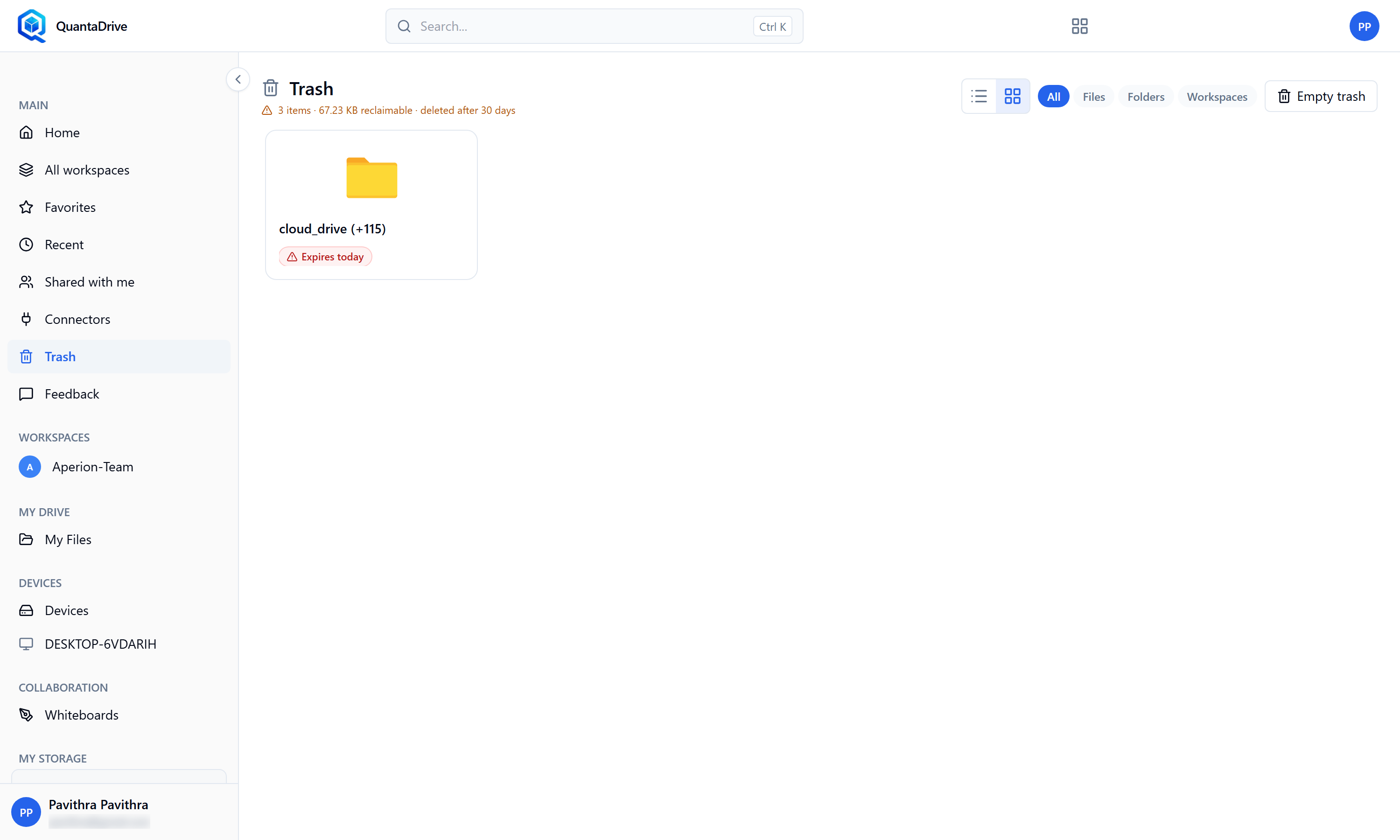
Trash. Select items and choose Restore, or use Empty trash at the top to remove everything for good.
Open Trash in the sidebar
It lists deleted items from everywhere you have access. The tabs across the top — All, Files, Folders, Workspaces — narrow the list to one kind of item.
Select what you want back
One item, or several at once.
Choose Restore
A confirmation appears: Restore N items to their original location? Workspaces and folders restore with all their contents.
Confirm
Items go back exactly where they were. You will see Restored. If the original folder was itself deleted, restore that folder first.
9.3. Deleting for good
Cannot be undone
Permanent deletion removes the file from cloud storage. There is no second trash and no recovery. Be certain before you confirm.
In Trash, select the items
Choose delete-forever
The confirmation is headed Delete forever and its button reads
Delete forever.Confirm
You will see Permanently deleted. Large batches run as a background job with progress in the operations bar.
9.4. Empty trash
Empty trash at the top of the page permanently deletes everything in
your trash at once, after one confirmation headed Empty trash. Treat it
with the same care as 9.3.
Permission note
Permanent deletion is a separate permission from ordinary deletion. If the option is missing or refused, your role does not carry it — ask the workspace owner.