15. Sync Monitoring
Part 15
/admin/products/quantadrive/sync · QuantaDrive only, because QuantaGrid
has no devices. This is the fleet view that answers the question a user’s own
Devices page cannot: how is desktop sync doing overall?
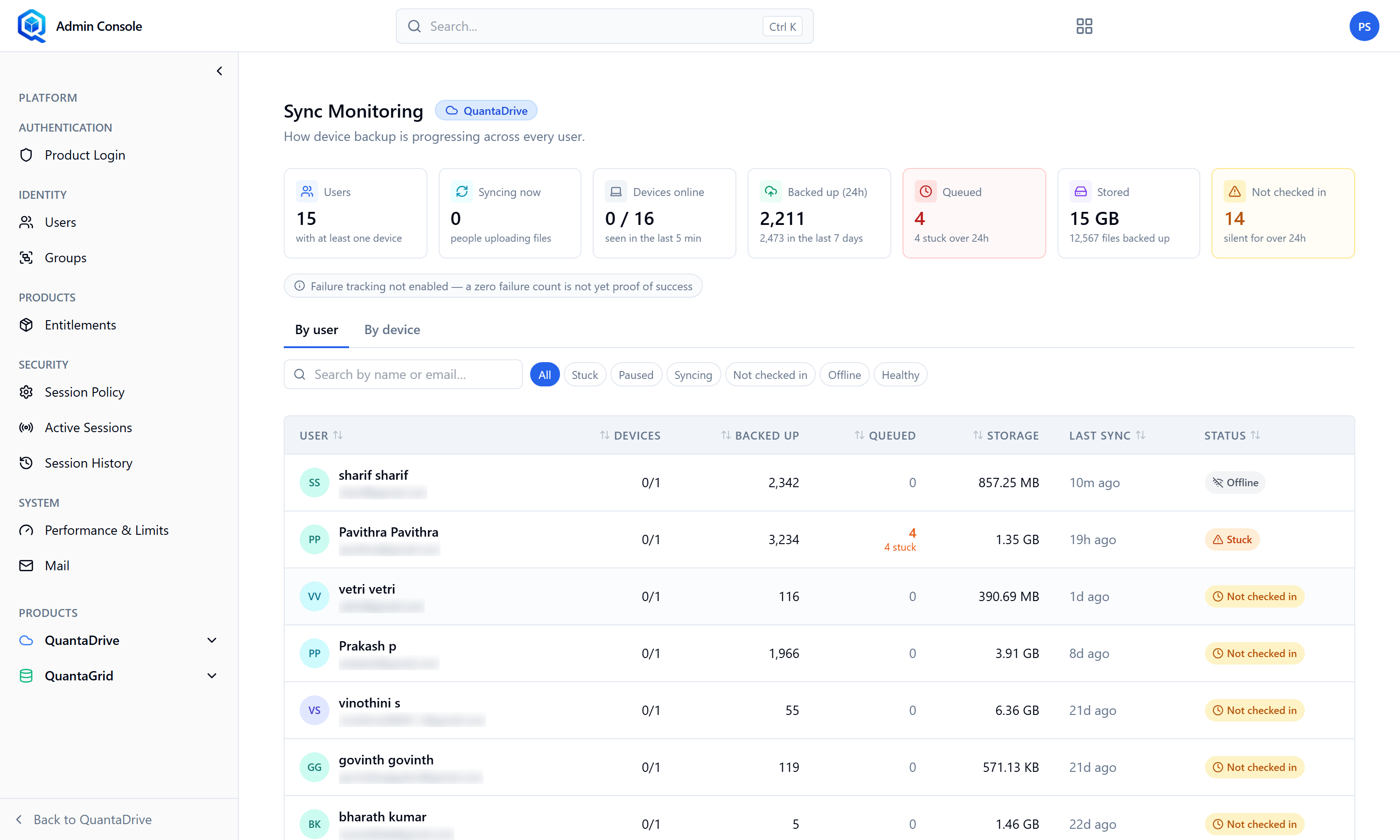
Sync Monitoring — the fleet view of desktop backup health.
15.1. The summary tiles
Across the top: how many Users own at least one device, how many Devices are online, and the overall backup volume. Read these first — a sudden drop in devices online is a platform problem, while one user complaining is usually a laptop problem.
15.2. The fleet table
Two tabs choose how the fleet is listed: By user or By device. The
table shows User, Devices, Backed up, Queued, Storage,
Last sync and Status. Search with Search by name or email….
A filter row narrows the list by state:
- All
Everything, the default.
- Stuck
Devices trying and failing to make progress. Look here first.
- Paused
Sync deliberately paused on that machine.
- Syncing
Currently moving data — healthy.
- Not checked in
The device has not reported at all. Usually switched off, or the desktop app is not running.
15.3. The device drawer
Click a device to open a drawer showing Files backed up, Folders being backed up and Recent activity. This is where you confirm whether a machine that claims to be syncing is actually moving data.
Reading the counts
Backed up is what is safely stored; Queued is what is still waiting. A queue that never falls is the same signal as Stuck. Judge health by Last sync together with Status — a recent last-sync with a rising queue is a device working through a backlog, not a fault.
15.4. Triaging a sync complaint
Find the user here and check Last sync
Recent means the pipeline works and the problem is a specific file or folder. Stale means the device is not talking to the service.
Open the device drawer and read Recent activity
Activity that stops at a particular time gives you the timestamp to search the logs with.
Check whether other devices are also stale
One device is a laptop problem. Many devices at once is a service or credentials problem, and the fix is on the server, not the desktops.
Have the user confirm the desktop app is running and signed in
The most common single cause.