2. The console map
Part 02
Reach the console from the Admin Console card on the Hub, or go to
/admin/users directly. The sidebar has two regions. PLATFORM settings apply everywhere and are
grouped under AUTHENTICATION, IDENTITY, PRODUCTS, SECURITY and SYSTEM.
PRODUCTS holds one expandable block per product — QuantaDrive and
QuantaGrid — whose settings apply to that product only. Back to QuantaDrive
at the foot of the sidebar returns you to the app.
Every page carries a scope badge beside its title: Platform for a setting that affects everyone, or the product name for one that does not.
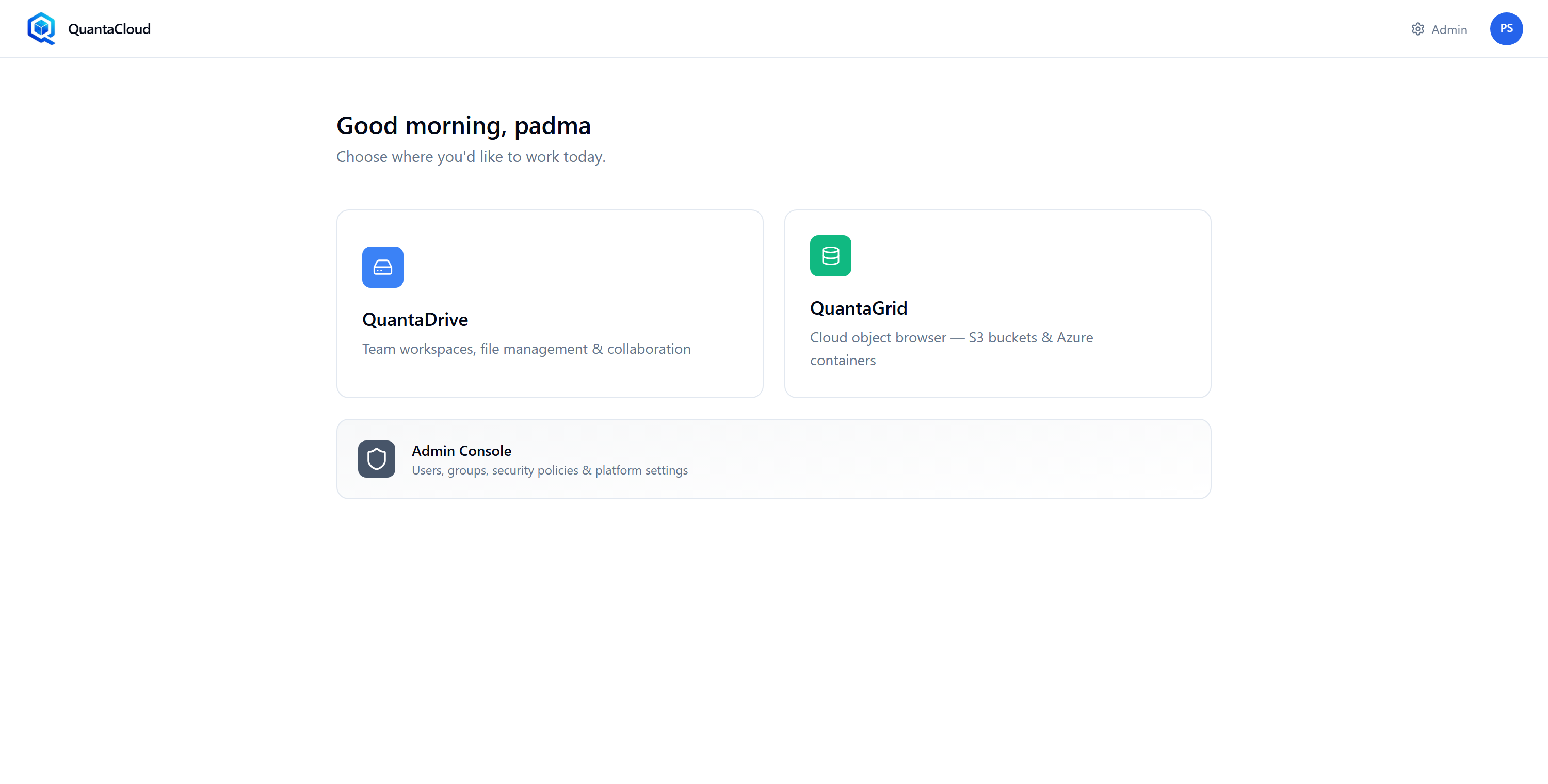
The hub as an administrator sees it. The Admin Console card and the Admin link in the top bar appear only for accounts with the Admin role — a plain User sees neither.
2.1. Platform
- Authentication (
/admin/identity) Product Login — how everyone signs in. Part 04.
- Identity (
/admin/users · /admin/groups) Users and Groups. Parts 05 and 06.
- Products (
/admin/entitlements) Entitlements — the plan, and who gets which product. Part 07.
- Security (
/admin/settings/session) Session Policy, Active Sessions, Session History. Parts 08–10.
- System (
/admin/system/performance) Performance & Limits, and Mail. Parts 11 and 12.
2.2. Products
- QuantaDrive (
/admin/products/quantadrive/*) Storage Access, Sync Monitoring, Preview & Limits, Connectors.
- QuantaGrid (
/admin/products/quantagrid/*) Storage Access, Directory Import and Preview & Limits.
Each product block appears only when that product is entitlement-enabled. A product you have disabled is greyed out or hidden, which is why a page can vanish from the sidebar after an Entitlements change rather than because something broke.
2.3. Scope labels
Every page carries a badge saying whether it is Platform-wide or scoped to one product. Trust it: a Platform page changes behaviour for everybody in the organisation, and a product page changes it only for that product.