4. Product Login — how everyone signs in
Part 04
/admin/identity · Platform scope. This one page decides the sign-in method
for the whole platform. It is the highest-risk page in the console: a wrong
value locks everyone out, including you.
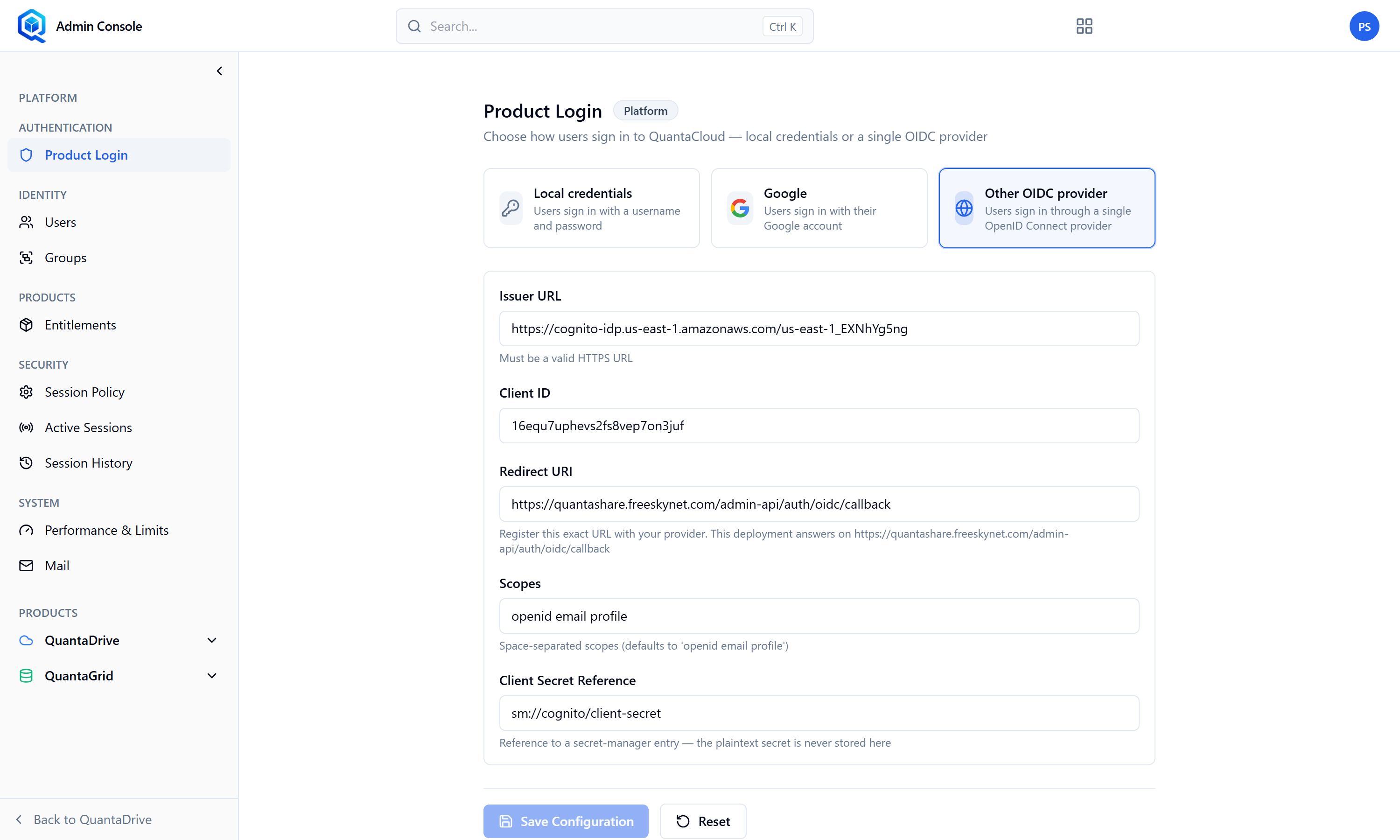
Product Login. One page decides how everyone signs in — test in a second browser before signing out.
4.1. Choosing the method
Choose local, or an OIDC identity provider
Local means usernames and passwords held by QuantaCloud. OIDC means your own provider — Okta, Microsoft Entra, Google, or any standards-compliant issuer.
Fill in the provider fields
Issuer — the provider’s base address, e.g. https://issuer.example.com.
Client ID — from the application you registered with the provider.
Client secret — entered as a secret reference, e.g. secret-manager://oidc/client-secret.
Save
Test in a private browser window, before you sign out
Keep your current admin session open in the normal window. If the new method fails, you still have a working session to change it back with.
4.2. Setting up Google specifically
The page states the prerequisites plainly. In the Google Cloud console, before this will work:
Create an OAuth 2.0 Client ID of type Web application
Register the redirect address QuantaCloud gives you
The provider must accept the callback or the sign-in will fail after the user has already authenticated.
Copy the Client ID and Client secret into the fields here
When Google is the configured provider, users see one Continue with Google
button. Google can also be offered alongside a different enterprise provider,
in which case users see both that button and Sign in with SSO.
Lock-out risk
If you switch to a provider that is misconfigured and then sign out, nobody can sign in — including every administrator. Always verify in a second browser first, and keep one local administrator account available as a fallback where your policy allows it.