2. Signing in
Part 02
The sign-in page shows between one and three ways in. Your administrator decides which appear, so your page may show fewer options than are described here. Use whichever one you were told to use.
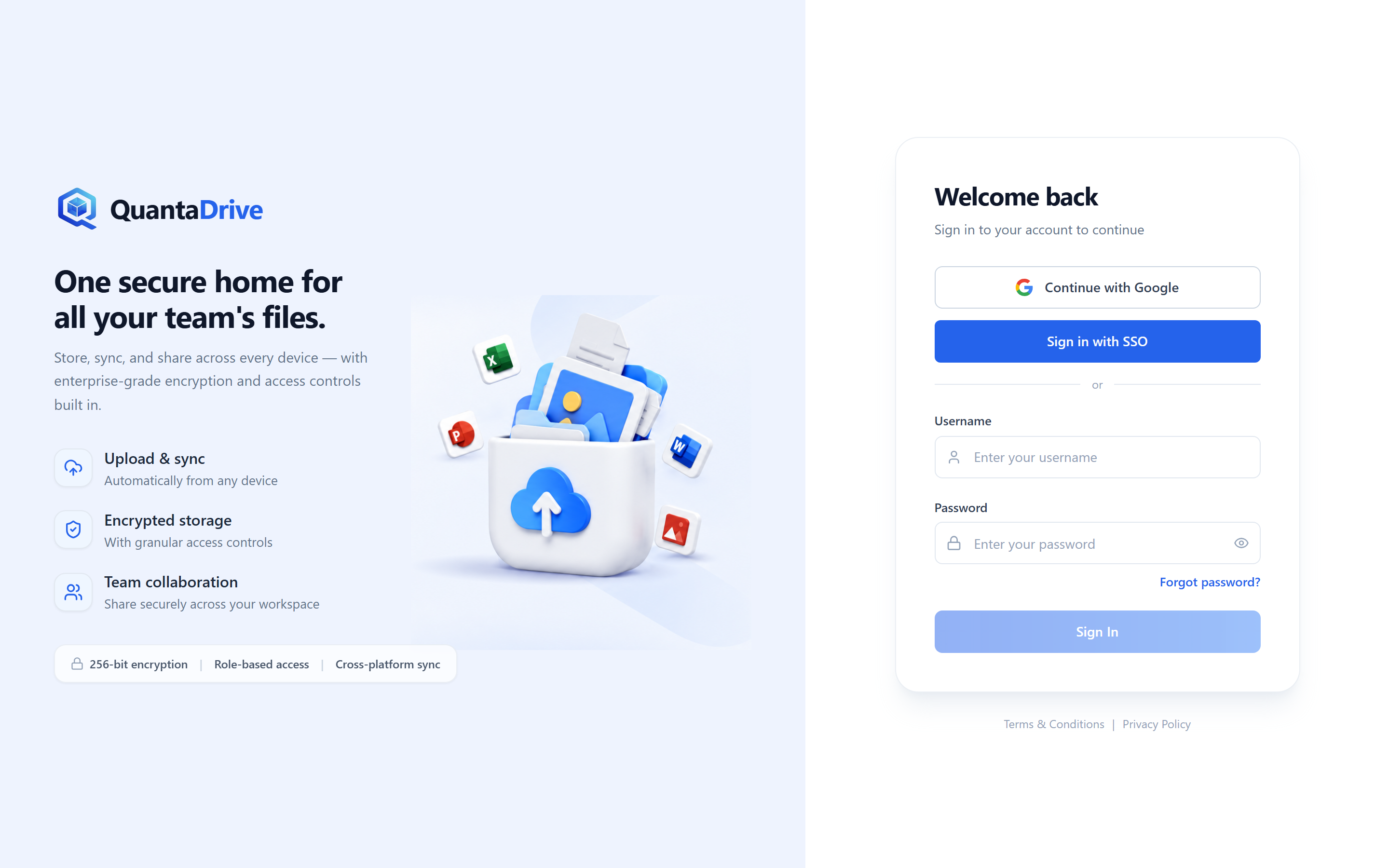
The sign-in page with all three options enabled. If your administrator has turned off Google or SSO, you will see only the username and password fields.
2.1. With a username and password
Open your QuantaCloud address
Type it into your browser. You land on the sign-in page, headed Welcome back with the line Sign in to your account to continue.
Type your username
In the first box, marked
Enter your username. This is your username, not necessarily your email address.Type your password
In the second box, marked
Enter your password. Use the eye icon at the right of the box to check what you typed.Press the sign-in button
If the details are right, QuantaCloud takes you straight to your product. See 2.5 for where you land.
2.2. With Google
If the page shows a Continue with Google button, your organisation allows
Google accounts.
Press Continue with Google
Your browser goes to Google’s own sign-in page.
Choose your account and approve
Pick the work account your administrator registered.
Wait for the return trip
Google sends you back to QuantaCloud, which finishes creating your session and opens the app. You never type a password into QuantaCloud.
2.3. With company SSO
If the page shows Sign in with SSO, your organisation uses its own
identity provider — Okta, Microsoft Entra, or similar.
Press Sign in with SSO
You are redirected to your company’s sign-in page. It will look like your company’s, not like QuantaCloud.
Sign in there as you normally would
Including any second factor your company requires.
You are returned signed in
If your account did not exist in QuantaCloud yet, it is created automatically at this moment.
2.4. The first time you sign in
New accounts are created with a temporary password. The first time you use it, QuantaCloud sends you to the Change password screen before it will let you in.
Enter Current password
The temporary password you were given or emailed.
Enter New password
It must satisfy your organisation’s password policy. The screen tells you if it does not.
Enter Confirm new password
Type the same new password again. If the two do not match you will see Passwords don’t match and the button stays disabled.
Save
You are signed in with the new password. Use the new one from now on — the temporary one stops working.
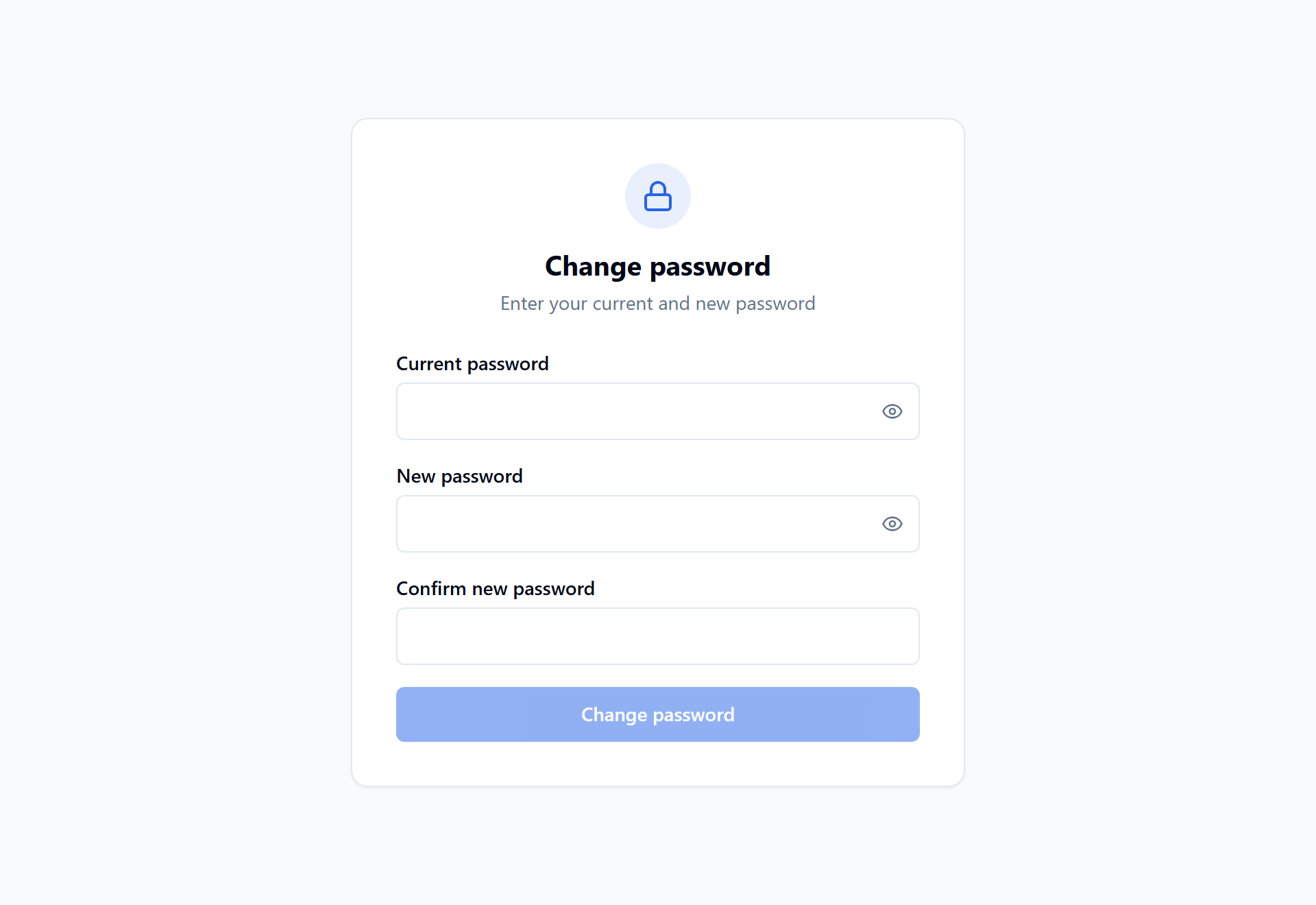
The Change password screen. Until the two new-password fields match, the save button stays disabled.
2.5. Where you land
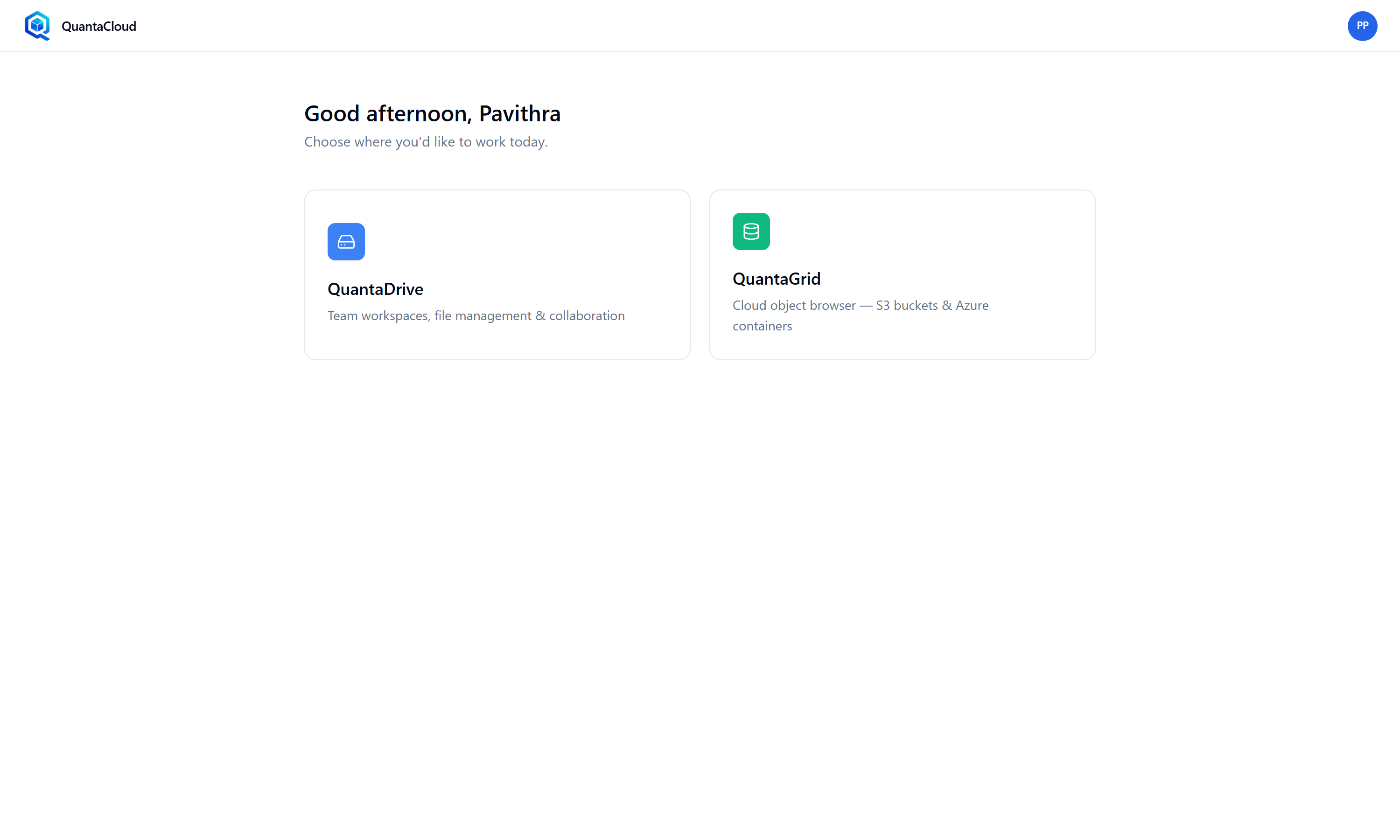
The hub, shown when you are entitled to more than one product. It lists only the products your account may use, so yours may show fewer cards than this.
One product only — you go straight into it. Most people go straight to QuantaDrive.
Two or more products — you land on the Hub, a page of large product cards. Click a card to enter that product.
No products — you stay on the sign-in page with the message No entitled products are available for your account. Please contact your administrator. This is not a password problem; your account simply has not been granted a product yet.
2.6. If you forget your password
Click the forgot-password link
It opens a page headed Forgot your password?
Enter your username or email
The box accepts either, as its hint shows: mailtest or you@example.com.
Submit and check your inbox
The page changes to Check your email. A temporary password is emailed to you.
Sign in with the temporary password
You are taken to the Change password screen from 2.4 and set a new one.
If no email arrives
Password emails only work when an administrator has configured the mail server. Check your spam folder first, then ask your administrator whether mail is set up.
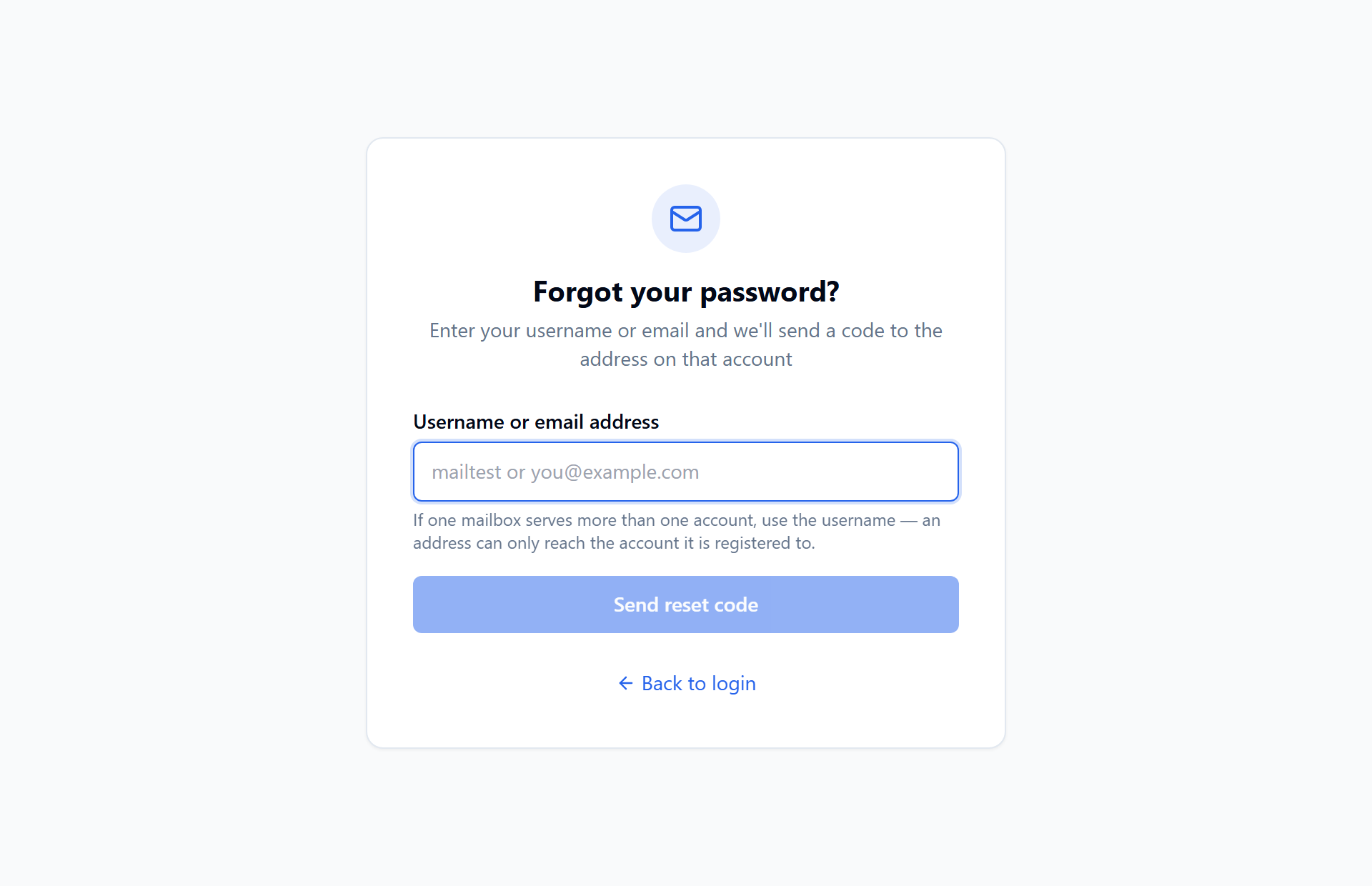
The Forgot your password screen. The one box accepts either your username or your email address.
2.7. If your account is locked
Five failed sign-in attempts lock the account. The message tells you what happens next:
Your account has been locked due to multiple failed login attempts. It will be automatically unlocked after 15 minutes.
You do not need to contact anyone. The lock clears by itself 15 minutes after your last failed attempt, and trying again before then restarts the wait. If you try while it is still locked, the message counts down the minutes remaining.
Use the time to be sure of your password — reset it if you are not (2.6). If you are still locked out well after 15 minutes, then ask your administrator, who can clear it immediately.
2.8. Signing out
Open the account menu in the top-right corner of any page and choose to sign out.