10. Sharing
Part 10
In QuantaDrive you share by adding someone to the workspace that holds the file. Everyone in a workspace can see its files, according to the role you give them. There is no per-file link to hand out, and no public link: a person must have a QuantaCloud account and be a member of the workspace before they can open anything in it.
10.1. Adding someone to a workspace
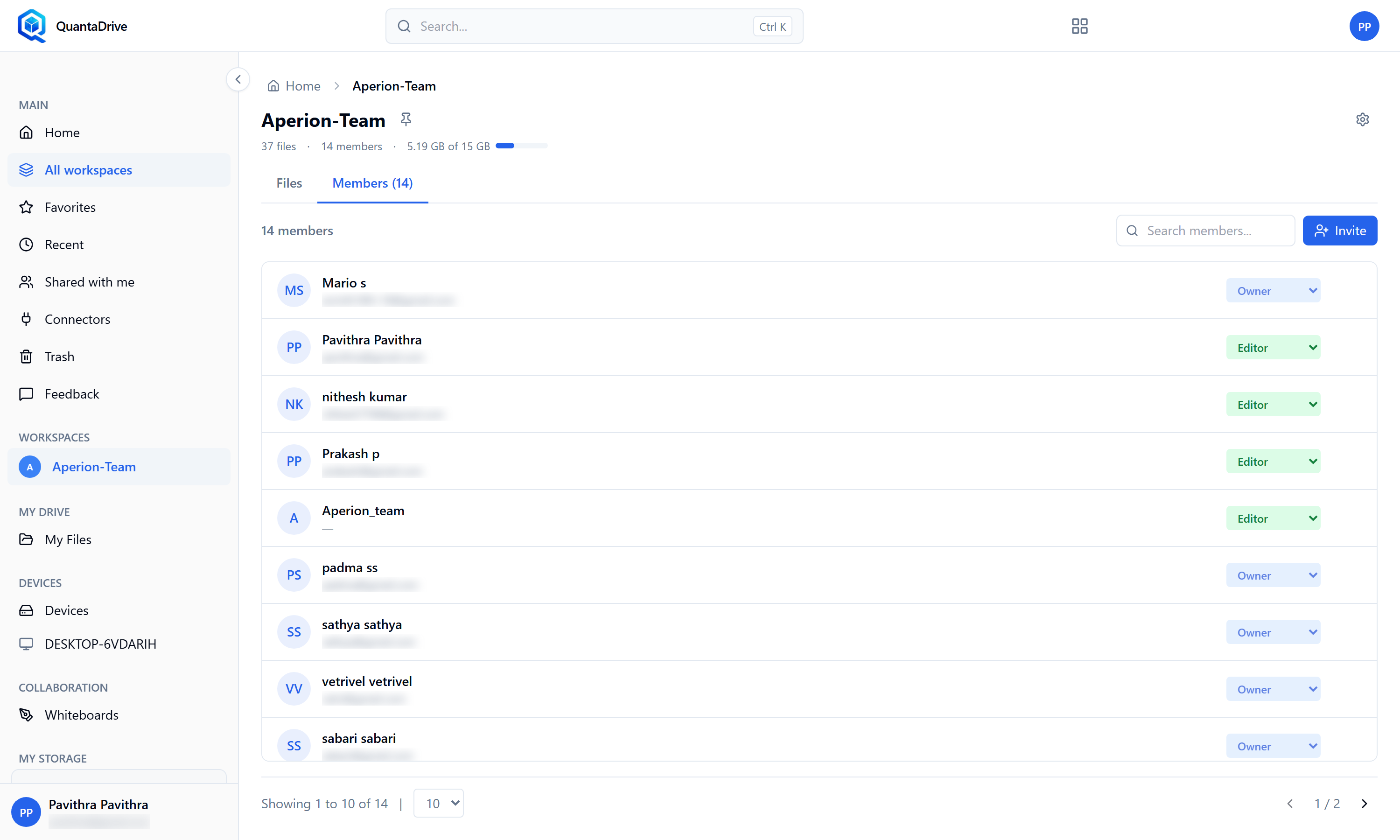
The Members tab. Each row has a role selector; Invite at the top right adds someone.
Open the workspace and go to the Members tab
The tab shows the member count beside its name, for example Members (14).
Press Invite
The button sits at the top right of the member list. The dialog that opens is headed Add Members.
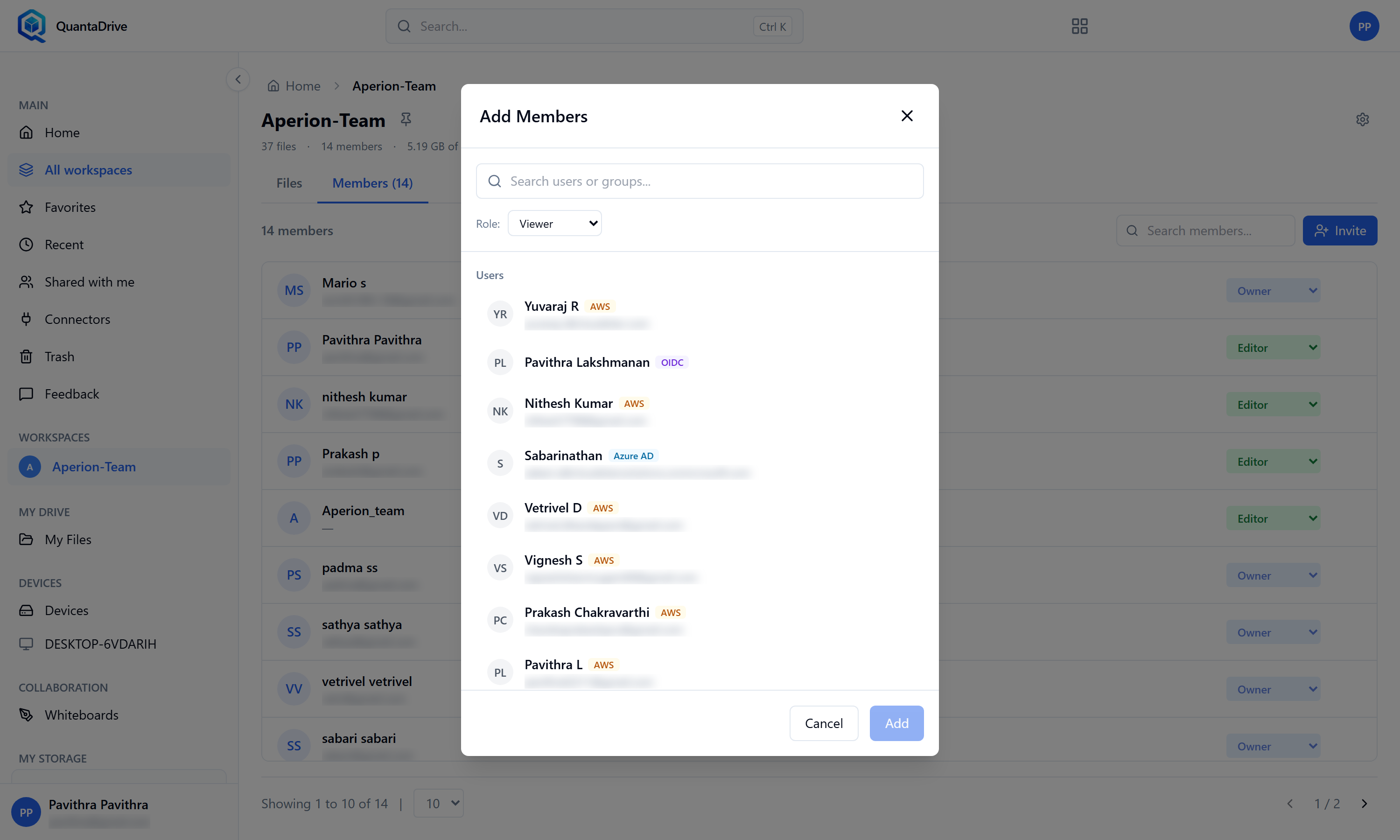
The Invite dialog. Search for a user or group, choose a role, and add them.
Search for the person or group
Adding a group grants access to everyone in it, which is tidier for a team. If nothing matches you will see No results found.
Choose their role
The Role selector offers Viewer, Commenter, Editor and Owner. Pick the least that lets them do their job — 10.3 lists what each one allows.
Add them
They appear in the member list with a coloured role badge and can reach the workspace immediately.
10.2. Changing or removing someone’s access
To change a role, use the selector on that person’s row and pick a new one. The change takes effect at once.
To remove someone, use the remove action on their row. Their access ends immediately, and any files they uploaded stay in the workspace.
10.3. What each workspace role can do
Role |
Open & download |
Upload & edit |
Manage members & settings |
|---|---|---|---|
Owner |
Yes |
Yes |
Yes — including delete and ownership transfer |
Editor |
Yes |
Yes |
No |
Commenter |
Yes |
No |
No |
Viewer |
Yes |
No |
No |
Handing over ownership properly — so the previous owner steps down — is done on the workspace Settings page, which only the Owner can open (Part 14).
10.4. Sending a colleague a link to a file
Files do not have a Share button. The item menu offers Preview, Add to favorites, Download, Rename, Copy to…, Move to…, Version history and Delete — there is no Share entry, and no link is generated.
To point a colleague at a particular file:
Make sure they are a member of the workspace
Add them first if they are not — see 10.1. This is the step that grants access; the address alone grants nothing.
Open the file
Double-click it. The file opens on its own page.
Copy the address from your browser’s address bar
It looks like
…/drive/file/<file id>.Send them the address
By email or chat, however you normally would.
What the recipient sees when they open it:
- Signed in and a member of the workspace
The file opens.
- Not signed in
The sign-in page appears. After signing in they reach the file.
- Signed in but not a member of the workspace
They cannot open the file. Add them to the workspace and ask them to try again.
There is no public link
Everyone who opens a file has to sign in to QuantaCloud, and has to be a member of the workspace. Nothing you send can be opened by someone outside your organisation, and a file cannot be made public.