5. Uploading files
Part 05
There are two ways to get files in: the Upload button and drag-and-drop. Both accept whole folders, and both go through the same conflict check.
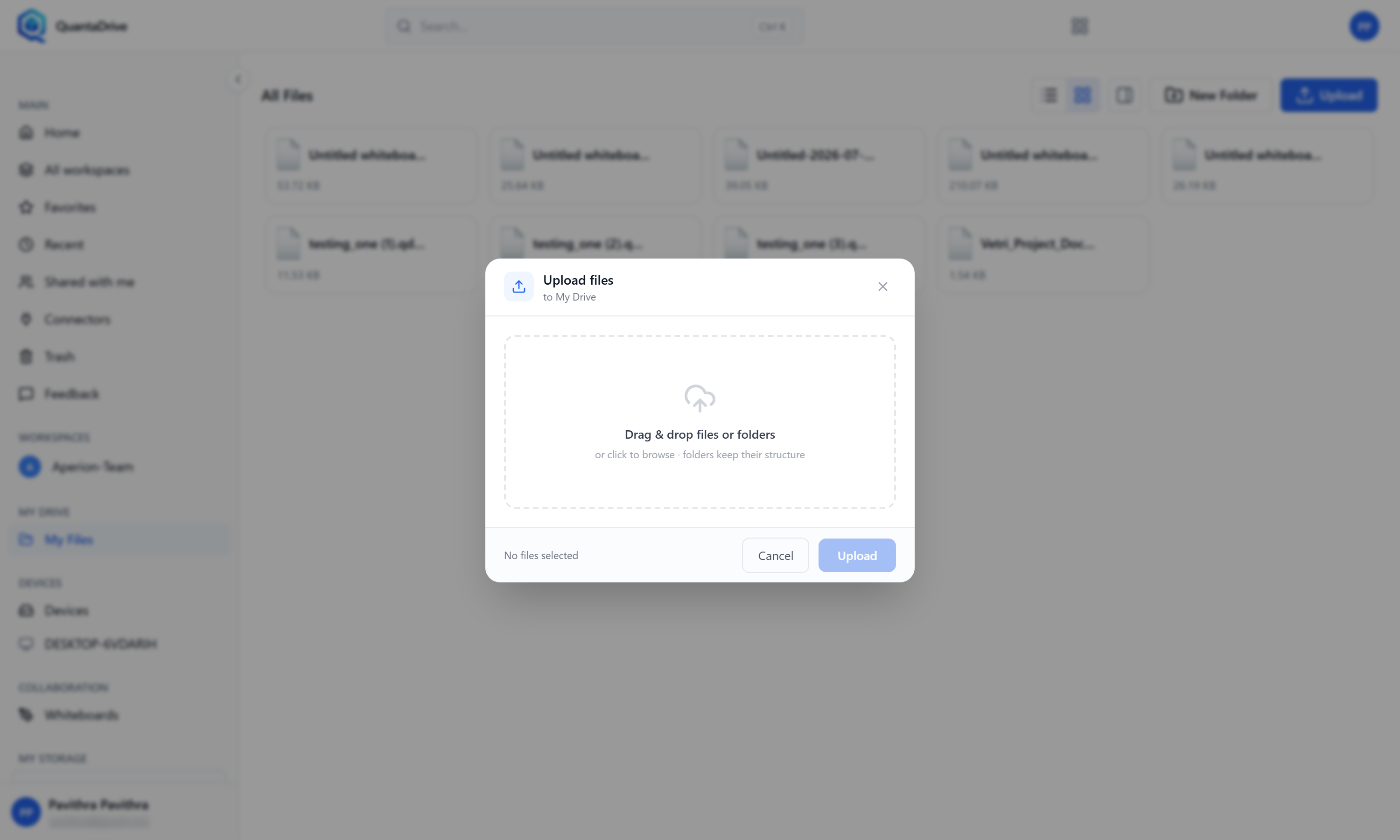
The Upload files dialog. Drop files or folders on the area, or click it to choose them.
5.2. Drag and drop straight onto the page
Drag files or folders from your computer onto the file list and drop them. The page shows a highlighted overlay while you hover. Release, and the upload starts in the current folder.
If a drop does nothing
You will see Could not read what was dropped. Try the Upload button.
Some browsers refuse to hand over certain items — a shortcut, a file open
in another program, a network location. Use the Upload button instead.
5.3. When a file of that name already exists
QuantaCloud checks for clashes before it uploads anything. The dialog shows the existing file (its size, when it changed, which version it is on) beside yours, and offers three choices:
- Replace
Uploads your file as a new version of the existing one. Nothing is lost — the old content stays in the version history and can be restored (6.7). This is usually what you want when updating a document.
- Keep both
Uploads yours under a slightly different name, so both files exist side by side.
- Skip
Does not upload this file at all. The existing one is untouched.
When many files clash at once, you are asked once and your answer applies to the whole batch.
5.4. Uploads that fail
A failed file is marked in the upload panel and the others keep going. Common causes:
The workspace is out of space — check the quota on the workspace Settings page and ask the owner to raise it.
The file is larger than the limit your administrator has set.
Your role is Viewer or Commenter — those roles cannot upload. See 10.3.