13. Network
Part 13
/admin/system/network · Platform scope. How the QuantaCloud services reach
each other inside your server: the ports they listen on, and the
certificates they use to prove who they are to each other. The page has
two tabs, Ports and Certificates; ?tab=certificates in the address
opens the second one directly.
Nothing on this page changes a running service by itself. Saving a port or creating a certificate only records it. It takes effect when it is applied on the server, which your server administrator does. The one exception: on an AWS installation, certificates are installed from this page with Install in AWS (see Installing certificates).
Your users are not affected
Browsers and the Qdrive desktop app always connect through your web address on port 443. Neither the internal ports nor the internal certificates are ever seen by them, and the public HTTPS certificate of your site is separate and untouched by this page.
13.1. Ports
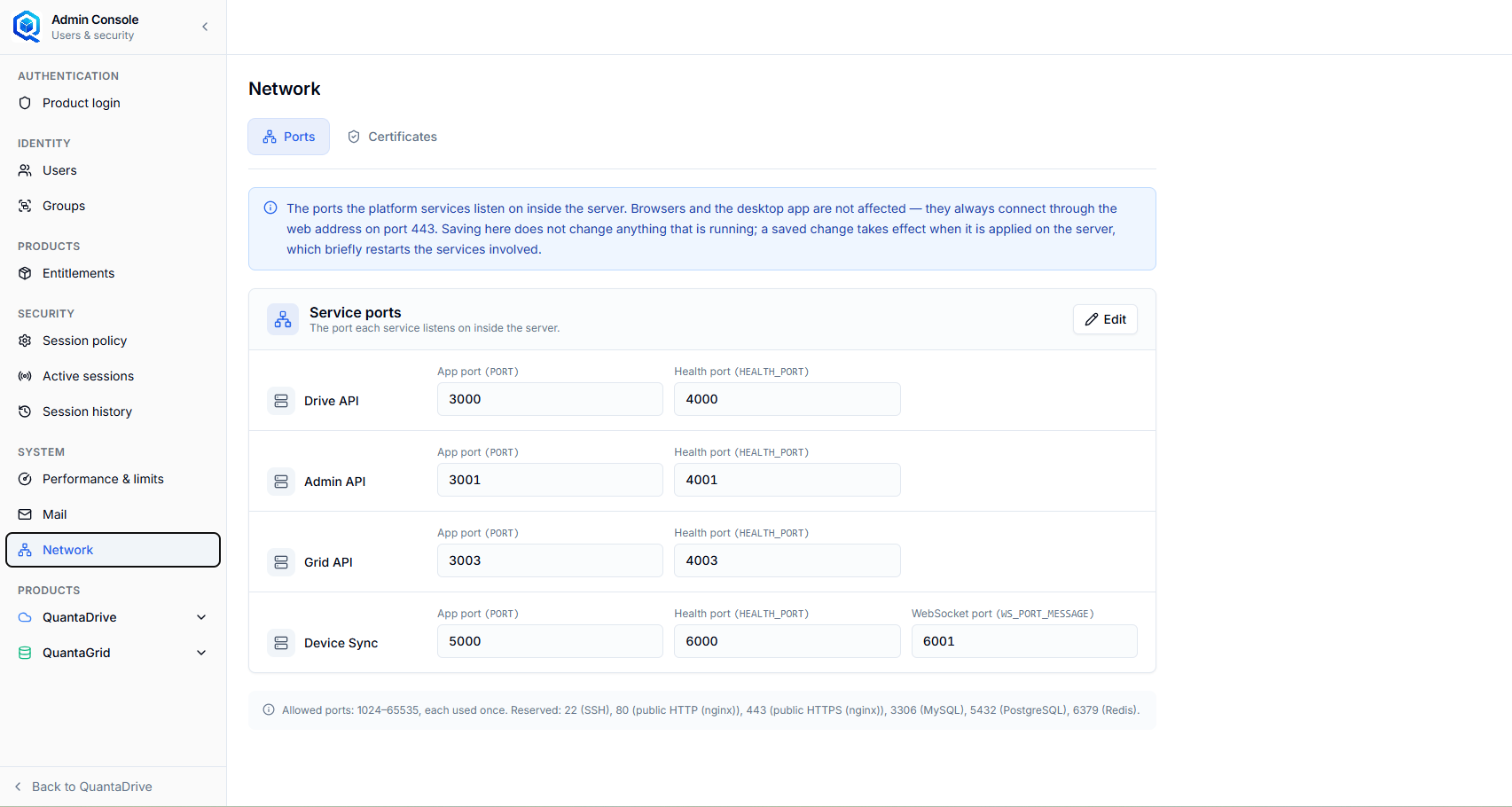
The Ports tab. Each service shows the port it listens on and the port its health check answers on.
Under Service ports, each service has one row. The label under each box names the setting it controls, in brackets.
- Drive API
App port (
PORT) 3000, Health port (HEALTH_PORT) 4000.- Admin API
App port 3001, Health port 4001.
- Grid API
App port 3003, Health port 4003.
- Device Sync
App port 5000, Health port 6000, and a third box, WebSocket port (
WS_PORT_MESSAGE) 6001 — the live connection the desktop app uses to hear about changes straight away.
These are the defaults. A port someone has changed shows Default: <n> under its box; a port saved but not yet applied shows In effect now: <n>, the value still running.
13.1.1. Changing a port
Change a port only when it clashes with other software on the same server. There is no other reason to.
Press Edit
The boxes unlock. Cancel puts every box back as it was.
Type the new port
The page checks each value as you type. Every port must be a whole number from 1024 to 65535, used only once across all the services, and none of the reserved ports: 22 (SSH), 80 and 443 (the public website), 3306 (MySQL), 5432 (PostgreSQL) and 6379 (Redis). A box that breaks a rule turns red and says why; Save stays disabled until every box is valid.
Read the preview
Under the list, When applied, this change will: names each port that moves, the related settings that move with it (for example, the web proxy is pointed at the new Drive API port automatically), and which services restart.
Press Save, then Save ports
The confirmation repeats that nothing changes yet. The page then shows a yellow box: Saved, waiting to be applied on the server.
Ask your server administrator to apply it
The yellow box gives the command they run on the server,
scripts/apply-network-config.sh --execute. It restarts each affected service on its new port, checks that it answers, and only then moves on. If any service fails to come back, every service changed in that run is put back as it was and the change stays waiting. When it succeeds, the yellow box disappears and Last applied at the foot of the page shows the time.
Apply it outside working hours
Applying a port change briefly restarts the services involved. Anyone uploading, syncing or signing in at that moment sees a short interruption.
Changing the Device Sync WebSocket port needs one step by hand
On some servers the desktop apps’ live connection is forwarded to the WebSocket port by a reverse proxy outside QuantaCloud. The apply command cannot change that proxy. When this applies, the page shows a red box, Also needed by hand after applying, naming the step. Skip it and every desktop app shows Offline.
13.1.2. Undoing a port change
- Not applied yet
Press Discard pending change. The ports go back to the ones in effect.
- Already applied
Edit the ports back to their old values, save, and apply again.
13.1.3. When the page will not let you edit
The ports are shown read-only, with an amber message saying why:
- Port configuration storage is not installed on this server yet
The database table for this page has not been created. Your server administrator applies migration 035.
- Port configuration is turned off on this server
Editing is switched off. Your server administrator sets
NETWORK_CONFIG_ADMIN=onfor the Admin API.
13.2. Certificates
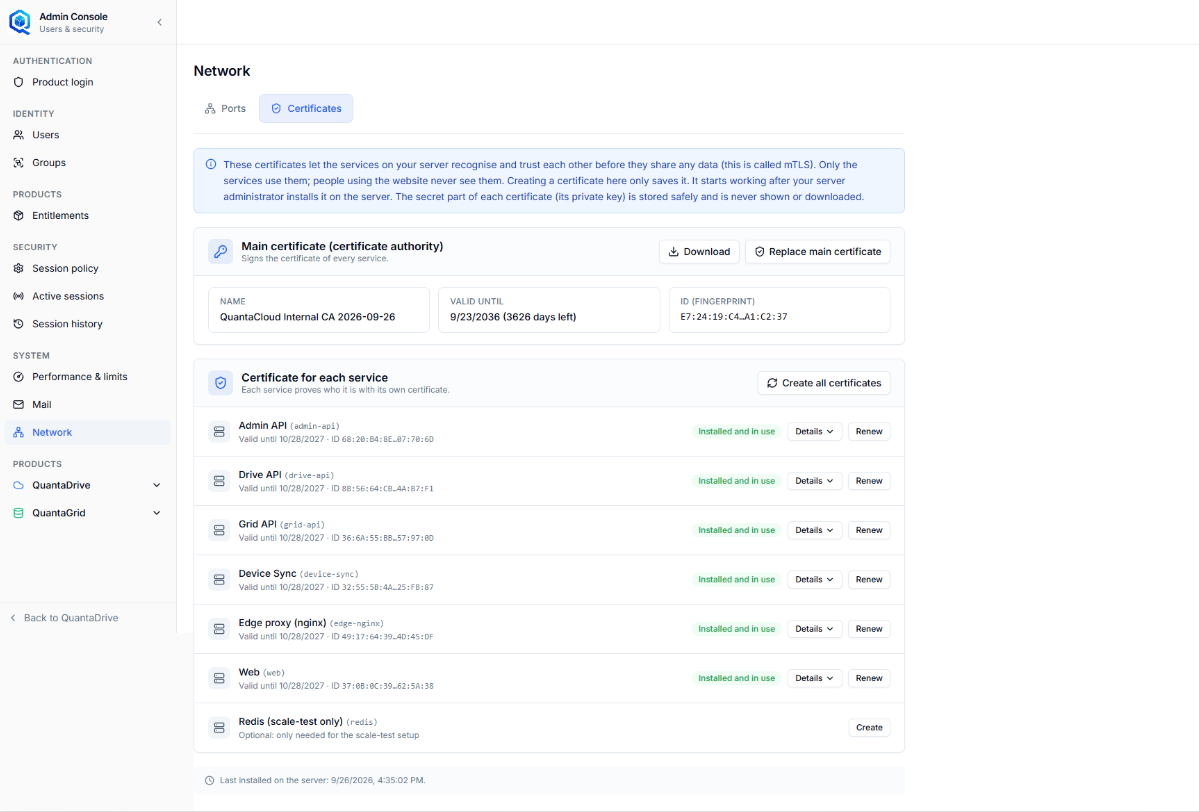
The Certificates tab on a server where every certificate is installed.
The services check each other’s certificate before they share any data. This is called mutual TLS, or mTLS. While mTLS is switched on, a service that cannot show a certificate signed by your own main certificate is refused, even from inside the server.
The certificates are created here, on the page; you never type, paste or upload one. The secret half of each certificate, its private key, is stored encrypted and is never shown or downloaded.
13.2.1. The main certificate
Main certificate (certificate authority) signs the certificate of every service, so it is created first. Once it exists the card shows:
- Name
For example QuantaCloud Internal CA 2026-09-26.
- Valid until
The date and the days left. A main certificate lasts ten years.
- ID (fingerprint)
A short form of its unique fingerprint, for comparing by eye. Hover to see it in full.
Download saves ca-bundle.pem, the main certificate every service
trusts. Replace main certificate starts a rotation (see Replacing the main certificate).
13.2.2. A certificate for each service
Certificate for each service lists Admin API, Drive API, Grid API, Device Sync, Edge proxy (nginx) and Web. Redis (scale-test only) is optional and only needed for a scaled-out installation with a separate cache.
Each row shows Valid until and the certificate’s ID, a status badge, and three buttons:
- Details
What the service holds: its Certificate (
<service>.crt), the names it works for, and a Download button; its Private key (<service>.key), marked as kept secret; and the Trusted CA bundle (ca-bundle.pem), the same file for every service. The Status line at the top says in words whether the service is using it yet.- Renew (or Create)
Makes a new certificate and private key, valid for 397 days. + Add other names or IP addresses is for the rare service reached by a name not in its built-in list; leave it closed unless your server administrator asks for it.
Create all certificates, at the top of the list, renews every service in one go and keeps any extra names you added.
13.2.3. What the status badge means
Badge |
Meaning |
What to do |
|---|---|---|
Installed and in use |
The service is using this certificate. |
Nothing. |
Waiting to be installed |
Created and saved here, not on the server yet. |
Install it (see Installing certificates). |
Installed in AWS: mTLS is off |
Stored in AWS, but the stack still runs without mTLS. |
Switch mTLS on for the stack (see Installing certificates). |
Expires in n days: renew soon |
30 days or fewer left. |
Renew, then install. |
Needs renewing |
Signed by a main certificate that has since been replaced. |
Renew, then install. |
Expired: renew now |
The service can no longer prove who it is. |
Renew and install at once. |
13.2.4. Installing certificates
After you create or renew anything, a yellow box at the top of the tab says it is waiting. How it gets installed depends on your installation.
- On your own server
The box reads Saved. Waiting to be installed on the server and gives the command your server administrator runs:
scripts/apply-tls-certs.sh --dir deploy/tls --execute --reload. It writes the certificates where the services read them and reloads them.- On AWS (CloudFormation installation)
The box reads Saved. Waiting to be installed in AWS with an Install in AWS button. It stores the certificates in AWS Secrets Manager. If mTLS is already on for the stack, every service restarts to load them — about five minutes, during which sign-in may pause briefly. If mTLS is off, nothing changes yet: open the stack in CloudFormation, choose Update with the current template, and set
InternalTlsModetorequired.
Last installed on the server (or in AWS) at the foot of the tab shows when it last happened.
13.2.5. First-time setup
A new AWS stack needs none of this
With InternalTlsMode required (the default) the stack makes and
installs its certificates itself - during the install, or in the update
that switches mTLS on - and every row already reads Installed and in
use. The steps below are for your own server.
Press Create main certificate
Press Create all certificates
Every required service gets one. Redis stays empty unless you need it.
Install them
As described in Installing certificates, above.
Check every row reads Installed and in use
13.2.6. Replacing the main certificate
Replace it if it may have been exposed, or as it approaches the end of its ten years. The old one stays trusted until you remove it, so nothing stops working part-way.
Press Replace main certificate
Press Create all certificates
Every service now has a certificate from the new main certificate.
Install them
Press Remove old main certificate
It is in the main-certificate card. Press it only when every service shows Waiting to be installed or Installed and in use — that is, every service already has a certificate from the new main certificate.
Install once more
From now on, certificates made with the old main certificate are refused.
The page refuses these steps out of order: Replace main certificate stays disabled until the previous rotation is finished.
13.2.7. When the page will not let you change anything
You can look but not change, with an amber message saying why:
- The database table for them has not been created
Your server administrator applies migration 036.
- This page is switched off on this server
Your server administrator sets
TLS_CERT_ADMIN=onfor the Admin API.- The encryption key that protects them is missing
CREDENTIAL_ENCRYPTION_KEYis not set for the Admin API.
Renew every year
Service certificates last 397 days. Put a yearly reminder in your calendar a month before Valid until, or check this tab during the monthly check (Part 20). While mTLS is on, an expired certificate stops the services talking to each other, and the website stops working with it.