14. Environments
Part 14
/admin/system/environments · Platform scope. Turns a separate test
environment on when you need it and off when you do not, so it costs nothing
while nobody is testing. Your live (production) site is never touched by this
page.
No test environment yet?
Environments is always listed under SYSTEM. On a server that has not been set up to control a test environment in AWS, the page says No test environment is set up and nothing else. See Setting it up at the end of this Part.
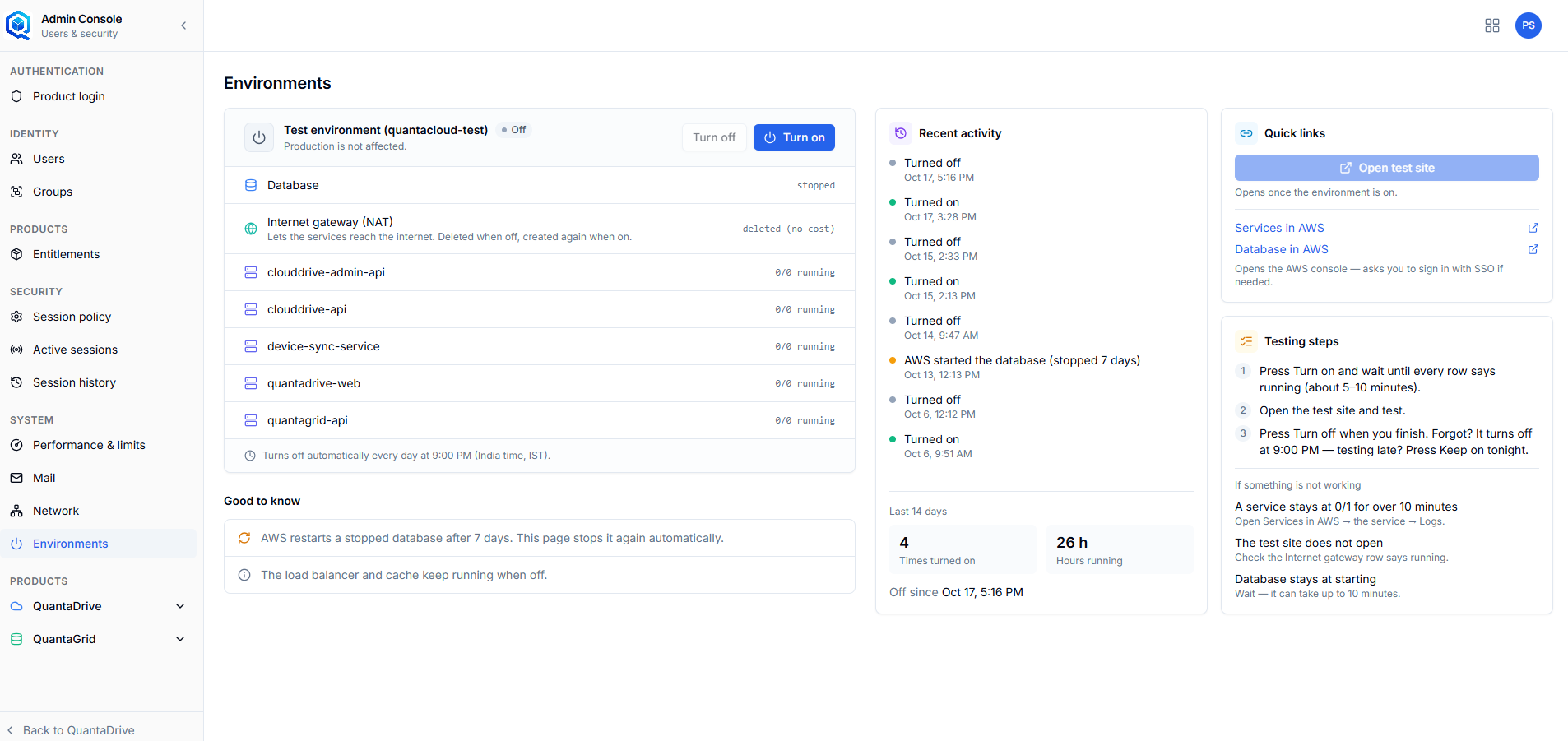
The Environments page with the test environment off. The status card is on the left; Recent activity, Quick links and Testing steps sit beside it.
14.1. The status card
The header names the environment, for example Test environment (quantacloud-test), with a badge for its state and the line Production is not affected.
- On
Everything is running and the test site can be used.
- Off
Everything that can be stopped is stopped.
- Starting… / Stopping…
A change is under way. The page refreshes itself every 15 seconds until it finishes, and shows … is ready — every service is running when a start completes.
- Partly on
Some parts are running and others are not — usually mid-change, or after a service failed to start. Both buttons work from here.
Below the header, one row for each part of the environment:
- Database
Its state as AWS reports it: available, starting, stopping, stopped.
- Internet gateway (NAT)
Lets the services reach the internet. A NAT gateway cannot be paused, only deleted, so it is deleted when off and created again when on. It reads running, creating…, connecting…, deleting… or deleted (no cost). needs permission means the server is not allowed to look at it.
- One row per service
For example clouddrive-api or quantagrid-api, with running/wanted —
1/1 runningwhen on,0/0 runningwhen off.
The foot of the card shows the automatic turn-off time, for example Turns off automatically every day at 9:00 PM (India time, IST).
14.2. Turning it on
Press Turn on, then confirm
The confirmation says what will happen: the database starts, the internet gateway is created, and every service starts. It costs money while it runs.
Wait until every row says running
About 5–10 minutes. The database is usually the slowest part.
Press Open test site
Under Quick links. It stays greyed out until the environment is on.
14.3. Turning it off
Press Turn off, then confirm
Every service and the database stop, and the internet gateway is deleted. Anyone using the test environment loses access until it is turned on again.
Wait for Off
A few minutes. You can leave the page; the change carries on without it.
Forgot to turn it off?
It turns itself off every evening at the time shown on the card. Testing late? While it is on, press Keep on tonight on that line; it then stays on tonight only, and turns off as usual from tomorrow. Undo cancels that.
14.4. Recent activity
Every on and off from the last 14 days, newest first, with the time and, where known, who did it. On a narrower screen five are shown and Show all lists the rest; a wide screen shows them all. An amber entry, AWS started the database (stopped 7 days), marks a start AWS made by itself (see Good to know).
Under the list, Last 14 days sums it up: Times turned on, Hours running, and how long it has been On since or Off since.
14.5. Quick links
- Open test site
The test environment’s web address, in a new tab. Only when it is on.
- Services in AWS
The environment’s services in the AWS console — the place to read a service’s logs.
- Database in AWS
The environment’s database in the AWS console.
When ENV_POWER_CONSOLE_SIGNIN_URL is set (see Setting it up), the AWS
links ask you to sign in with your company’s AWS single sign-on if you are not
signed in already; without it, sign in to AWS first. You need your own AWS access for them; the
Admin Console does not give you any.
14.6. Testing steps
The card on the right repeats the routine — turn on and wait, open the test site and test, turn off when you finish — and the three fixes you are most likely to need:
What you see |
What to do |
|---|---|
A service stays at 0/1 for over 10 minutes |
Services in AWS → the service → Logs. The service is failing to start; the log says why. |
The test site does not open |
Check the Internet gateway (NAT) row says running. Without it the services cannot reach the internet. |
The database stays at starting |
Wait. It can take up to 10 minutes. |
14.7. Good to know
AWS restarts a stopped database after 7 days. AWS does not let a database stay stopped longer. When that happens this page stops it again automatically, and Recent activity shows the amber entry.
The load balancer and cache keep running when off. They cost a little even when the environment is off. Removing them needs a change to the AWS stack itself, which this page deliberately does not make.
14.8. Setting it up
For whoever runs the server. The page is switched on by settings on the Admin API, and nothing else:
Setting |
What it is |
|---|---|
|
The ECS cluster of the test environment. Unset, the page says no test environment is set up. |
|
Its RDS database. |
|
The name shown on the card. Optional. |
|
The AWS region. Default |
|
How many copies of each service to start. Default 1. |
|
The daily turn-off hour (0–23) and its time zone. Leave the hour empty for no automatic turn-off. |
|
Where to create the internet gateway. Without both, the gateway is left running and the page does not show it. |
|
The test site’s address, for Open test site. |
|
Your AWS single sign-on console link, so the AWS links sign in first. |
The server uses its own AWS role, never stored keys. That role needs permission to list, describe and update the cluster’s services; to describe, start and stop the database; and, for the internet gateway, to create and delete NAT gateways, allocate and release public IP addresses, and change the route.